Seven20
Seven20 is a Salesforce application specifically designed for recruitment agencies. It functions as a Customer Relationship Management (CRM) and Applicant Tracking System (ATS) rolled into one.
Prospect integration with Seven20 allows you to:
- Show Salesforce data on selected websites via the Chrome Extension
- Create Salesforce/Seven20 Candidates from any website and selected job boards
- Create Salesforce/Seven20 Accounts from any website
Create Seven20 Job Codes from within Prospect
Job Codes help categorize and filter job openings within Seven20, which can be useful for tasks like reporting, searching for specific types of jobs, and analyzing recruitment trends.
- On Salesforce Object Manager, Navigate to the Contact object

- From the Contact object, Create a New Contact Code link on the Contact

- The Label can be anything you want, though is typically "Add Code to Contact", or "Create Contact Code". Whatever will make the most sense for your users. The Name should starts with “sblink_” (without the apostrophes). So it might be "sblink_add_code_to_contact". It's important it starts with "sblink_" as that tells Recruiterbolt to show it in the Chrome Extension. Then select the radio link for "Detail Page Link" with the Behavior of "Display in new window."

- Your URL will look like https://your-org.lightning.force.com/lightning/cmp/seven20__MassCodeContacts?seven20__ids={!Contact.Id}. Replace the above your-org.lightning.force.com with your correct Salesforce Org Domain and then save this new link
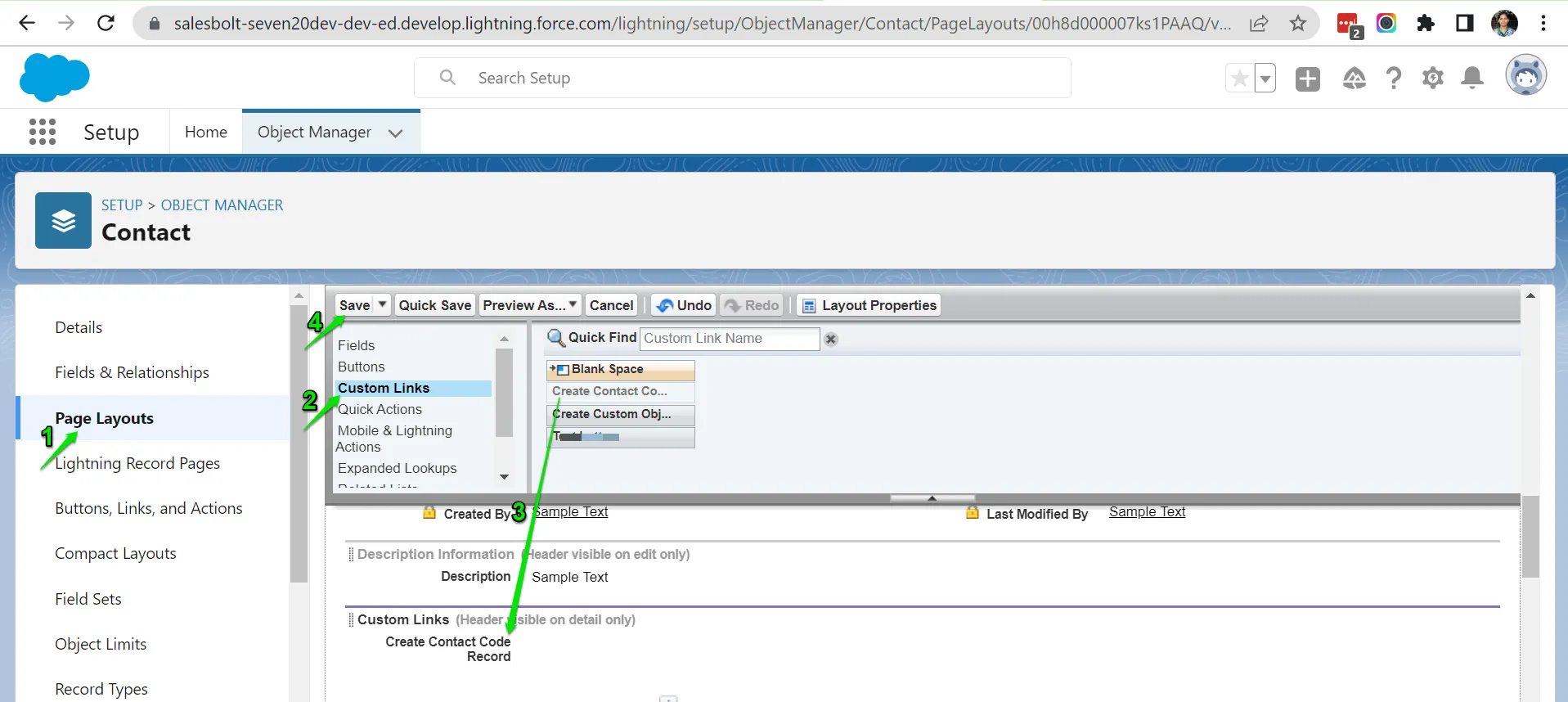
- You'll need to add the new link to the page layout. From the Contact > Page Layout page, add the link to Custom Links. The changes to the page layout should be visible to Prospect users within the next 24 hours.