Slack
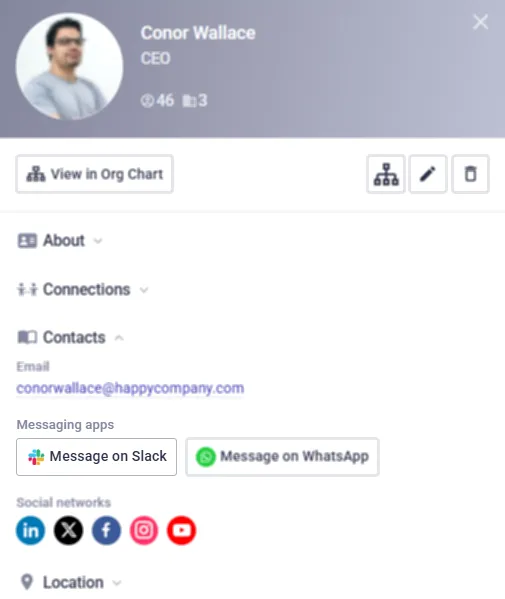
Add the Slack account to an employee's profile using the Slack field. Once added, a button will appear in their profile under Messaging apps to chat on the native Slack app (if installed) or the Slack browser interface.
How it works
The Slack field is available under the Contacts tab when editing an employee's profile. This field accepts either a Slack Member ID or a Slack URL, each with its own validation rules:
The system accepts standard Member IDs (starting with "U" or for Slack Enterprise the ID starts with "W").
Validation rules
- Must be at least 6 characters long.
- Must NOT start with "T" (Team ID) or "D" (Direct Message ID).
- Must NOT contain commas.
- If validation fails, the error message directs the user to enter a valid ID (e.g., U01ABCDEFGH).
Once a valid ID or URL is saved, a Message on Slack or Open Slack button appears in the Messaging apps section of the employee detail card.
Button behaviour:
- If a Member ID was entered: The button uses the deeplink https://slack.com/app_redirect?channel=SLACK_MEMBER_ID.
- If a URL was entered: The button directs the user to the exact URL provided.
Bulk updates
The Slack field can be updated in bulk via CSV export/import with either the Member IDs or the full URLs described above. The column header in the CSV is "Slack member ID".