---
title: Wallboard
slug: voice-german/wallboard
docTags:
createdAt: 2024-03-13T19:04:36.852Z
---
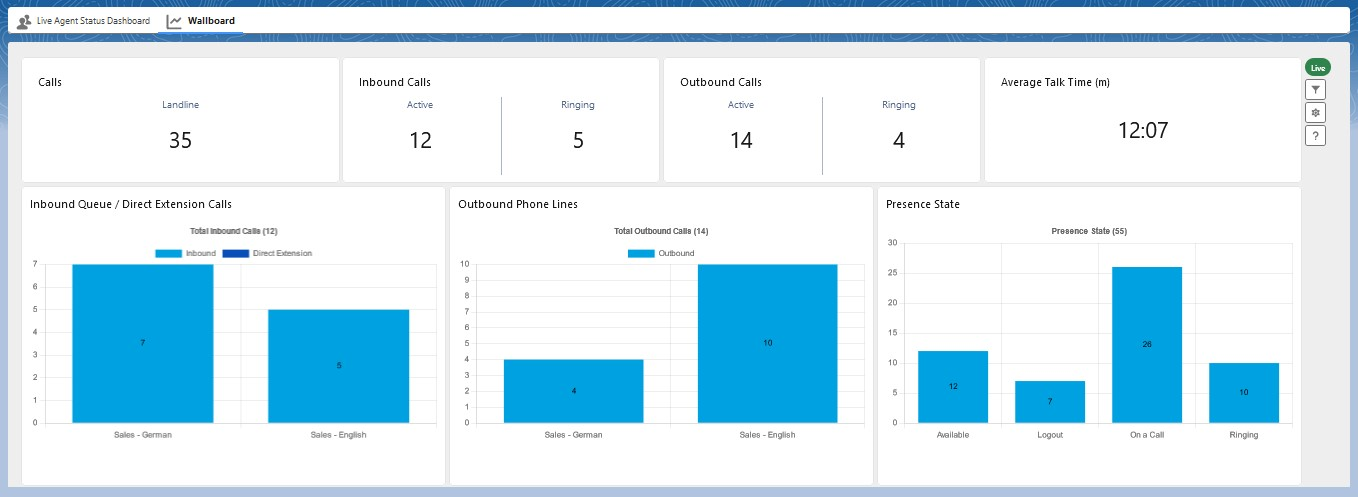
The wallboard gives a **Live View **and **Historical View **(up to 30 days) about important call parameters.
The Live View shows the **actual ongoing calls.**
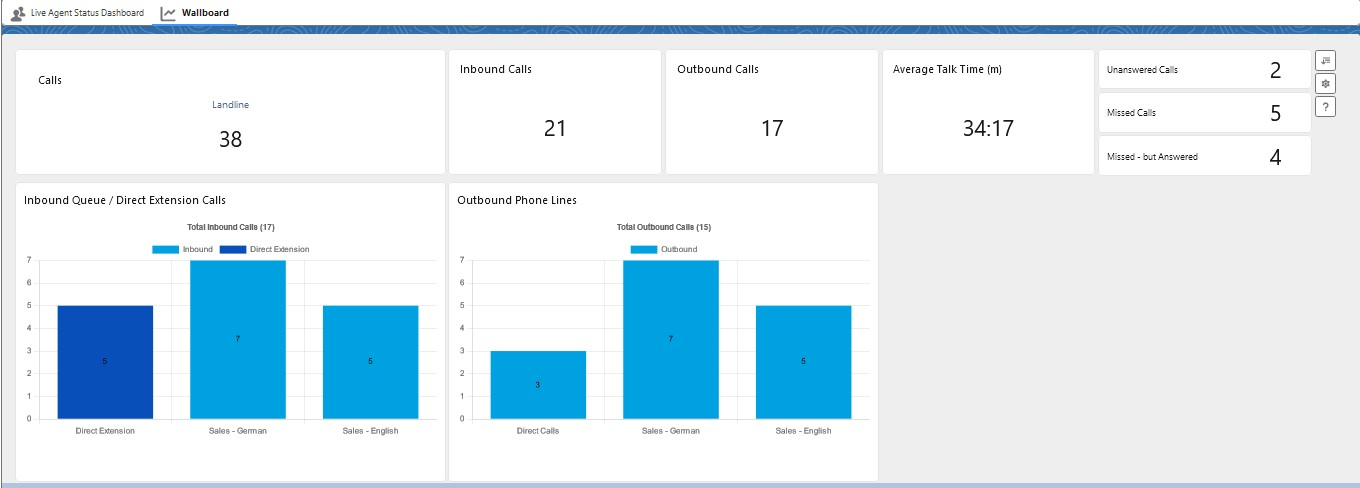
The **Historical View** shows additional information like *Unanswered Calls*, *Missed Calls* and *Missed but Answered* calls. You can switch between Live and Historical View using the filter icon :FontAwesome[]{icon="fa-solid fa-filter"}
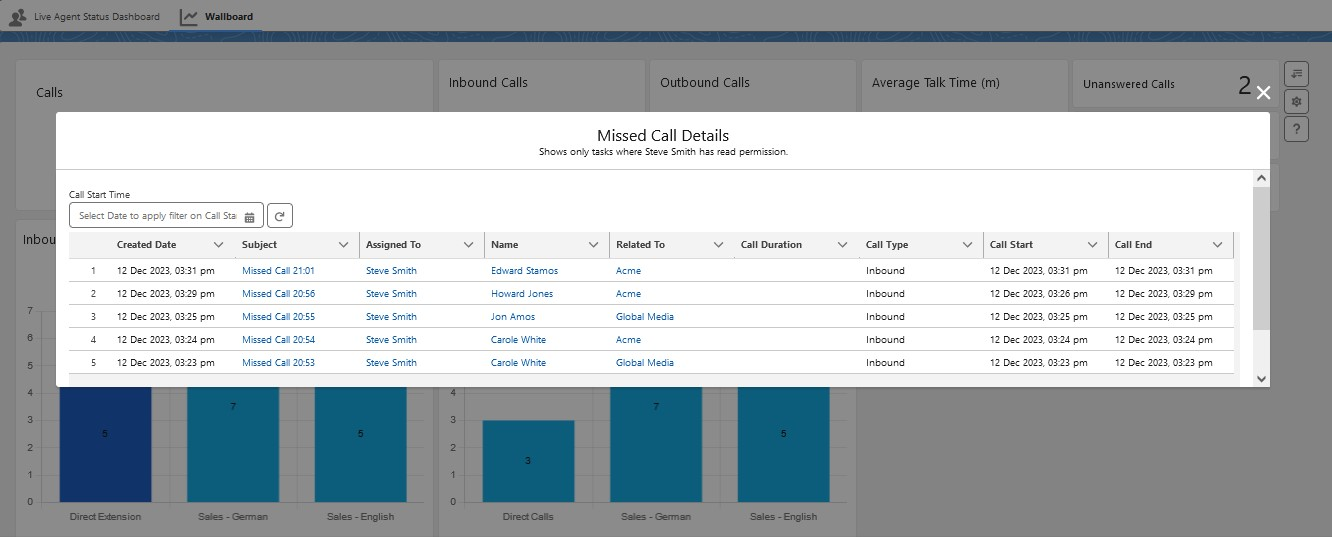
If you click on any call metrics in the Wallboard, you will see a detailed view for those calls. Below is an example of missed calls.
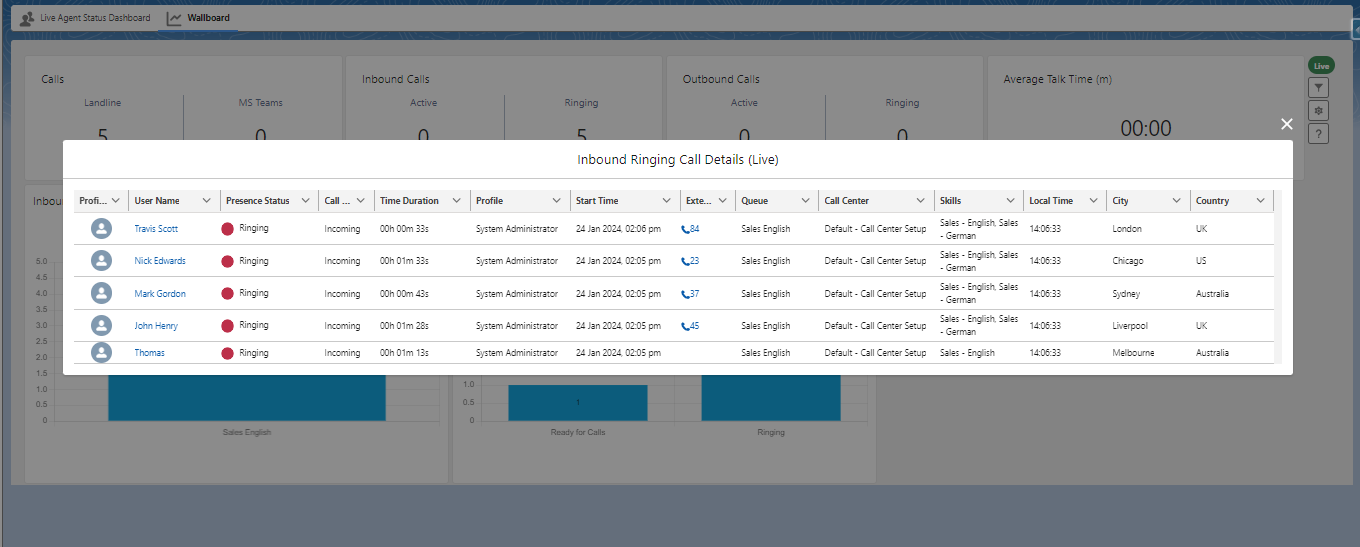
The example below shows the detailed view of calls in ringing state.
The KPIs are configurable, you can select which data you want to see on the Wallboard. See [Call Center - Presence State](docId\:ic_BO24kHS0yU75wOUEyg)
## Wallboard Overview
•Only calls which are signaled to a user appear on the wallboard. Calls where callers are still waiting in a queue are not displayed
•The data is only updated when the TAB is active.
## Calls - Landline Calls
Calls (incoming and outgoing) via a telephone system to the fixed network
## Calls - MS Teams calls
This parameter is only available with the MS Teams integration and shows
•Users in MS Teams meetings
•User in MS Teams meeting and presenting
•Users making an MS Teams native call (MS Teams user to MS Teams user)
## Inbound Calls
Inbound calls - Landline and MS Teams - to either direct extension or queues
## Outbound Calls
Outbound calls - Landline and MS Teams
## Average Talk time (m)
The average talk time is in minutes.
This is the entire talk time (hold time + active call time) divided by the number of calls. The ring time is not considered in the average talk time.
## Queues Live
Active calls coming in through a queue or outbound calls, where the call was done using a queue number.
This feature is supported only by a few phone systems.
## Queues Today
A **summary of all calls from today** coming in through a queue or outbound calls, where the call was done using a queue number.
This feature is supported only by a few phone systems.
## Presence State
The presence state of all users who logged in the CTI Data Connector SoftPhone **today. **This chart is only available in the** Live View.**
## Wallboard - Filter options
Only the [Live Agent Dashboard Administrator](https://helpserver.biz/onlinehelp/cdc/sf/5.0/help2000/live-agent-dashboard.html) can filter data based on Call Center, queue, and agents.
to filter the view per **Agent, Call Center, or Queue**.
Click on the filter icon :FontAwesome[]{icon="fa-solid fa-filter"}
In addition to that, you can switch between **Live and historical data** - Today, Last 7, 15, and 30 days.
If historical data is selected, you can refresh the wallboard with the refresh icon :FontAwesome[]{icon="fa-solid fa-arrow-rotate-right"}
If a filter is applied, the icon shows :FontAwesome[]{icon="fa-solid fa-arrow-down-wide-short"}
## Wallboard - Settings
to configure the graphic type (e.g., bar, donut, pie)
Click on the icon :FontAwesome[]{icon="fa-solid fa-gear"}
**Things to Know**
Live View
•Live View is based on the user’s time zone
•As the screen refresh is typically [15 seconds](https://helpserver.biz/onlinehelp/cdc/sf/5.0/help2000/live-agent-dashboard-setup.html), short calls will not be reflected in the Live View but in the historical data view
•If an inbound call is in a **ringing** state, it is not reflected in the wallboard (depends on how the phone system sets the presence state)
•If you use queues with the routing **method Ring All / [Attendant Routing](https://helpserver.biz/onlinehelp/cdc/sf/5.0/help2000/routing-methods.html)**, a call per agent will appear (depends how the phone system sets the presence state for ringing)
•Average Talk Time for outbound calls could include ring time for some phone systems
•Missed calls will not show
Historical View
The **Today** filter uses the time when the presence status was last updated (typically every 60 seconds) - this covers the situation when a call from a user in another country goes past midnight.
MS Teams special features
•If an MS Teams call is an **MS Teams meeting **or an **MS Teams user to MS Teams user** call, it is shown in the MS Teams box. This is essential to distinguish between an MS Teams landline call and an MS Teams meeting/call
•Outbound calls will only show once the call is confirmed in the Microsoft Teams-APP
•If the presence state is **Offline** and you make an **outbound** call, this call does not appear in the wallboard
•An inbound call only appears in the wallboard once the call is **answered **- a call in *ring state* is not showing as an active call
•Ring Time for outbound calls starts when you start the call in Salesforce independently from the time you confirm the call in the Microsoft Teams APP
•Average Talk Time for outbound calls does not include ring time, missed calls, and unanswered calls
•If a user is presenting, it will not show as an MS Teams call, and in the historical view it will count **2 calls** - *On a call* - presenting - back to* On a Call*
•Outbound calls which are rejected in the Microsoft Teams APP will not show
•If a **second** call to a **direct extension** comes in while already on a call, the ring time for this second call is missing. The second call is also missing in Live View if Microsoft Teams switches in the second call to the presence state *Available *instead *On a Call*
[How to configure the Wallboard?](https://helpserver.biz/onlinehelp/cdc/sf/5.0/help2000/reason-codes_2.html#liveagentdashboard)