---
title: Service Cloud Console
slug: voice-german/service-cloud-console
docTags:
createdAt: 2024-03-12T18:18:46.458Z
---
The Service Cloud Console can be used **with or without** the Interaction Log (requires special setup. See [Service Cloud setup](docId\:jmlX-JsQfEgDZuJKHQcKg)) in combination with CTI Data Connector for Salesforce®.
The CTI Data Connector SoftPhone options in the Service Cloud Console are a bit different in comparison to the standard Salesforce setup. The options available in the CTI Data Connector SoftPhone are different depending if the transaction log is used or not.
## Main Screen - Service Cloud Console
Using the Service Cloud console, the CTI Data Connector SoftPhone is hidden in the lower right corner of the window. Click on the icon 📞 to open the CTI Data Connector SoftPhone. It will **automatically appear **once a call has started.

## Incoming Call
Incoming calls are signaled in the CTI Data Connector SoftPhone on the **right** side of the screen in a **green frame**. The Lead/Account/Contact details are displayed in a **new TAB**. For more details of the CTI Data Connector SoftPhone functionality see [CTI Data Connector SoftPhone](docId\:J5cSqm4zZ21U6cp5fTNL6)
::Image[]{src="https://api.archbee.com/api/optimize/10Nod6Ww95R3dPr0k0TCJ/zNHvl0jNz3HR20ubHq4eh_image.png" size="48" width="205" height="289" position="center" showCaption="false"}
**Outgoing Calls**
Outgoing calls are signaled in the CTI Data Connector SoftPhone on the **right side** of the screen in a **blue frame**. For more details of the CTI Data Connector SoftPhone functionality see [CTI Data Connector SoftPhone](docId\:J5cSqm4zZ21U6cp5fTNL6)
::Image[]{src="https://api.archbee.com/api/optimize/10Nod6Ww95R3dPr0k0TCJ/7tUiioQuCOLHtk_3YWr3D_image.png" size="42" width="216" height="314" position="center" caption="Outbound Call - SoftPhone" showCaption="true"}
## Cases
Typically the service cloud is used in combination with cases. CTI Data Connector allows creating cases for incoming and outgoing calls automatically or display the case which was created today. How to enable this feature see: [Cases](docId\:at3BF3gbAsWV10t1SDJZZ).
Once enabled the Service Cloud Console functionality changes.
Note: This functionality is not available for leads.
### Outgoing calls
When dialing from the account or contact list view
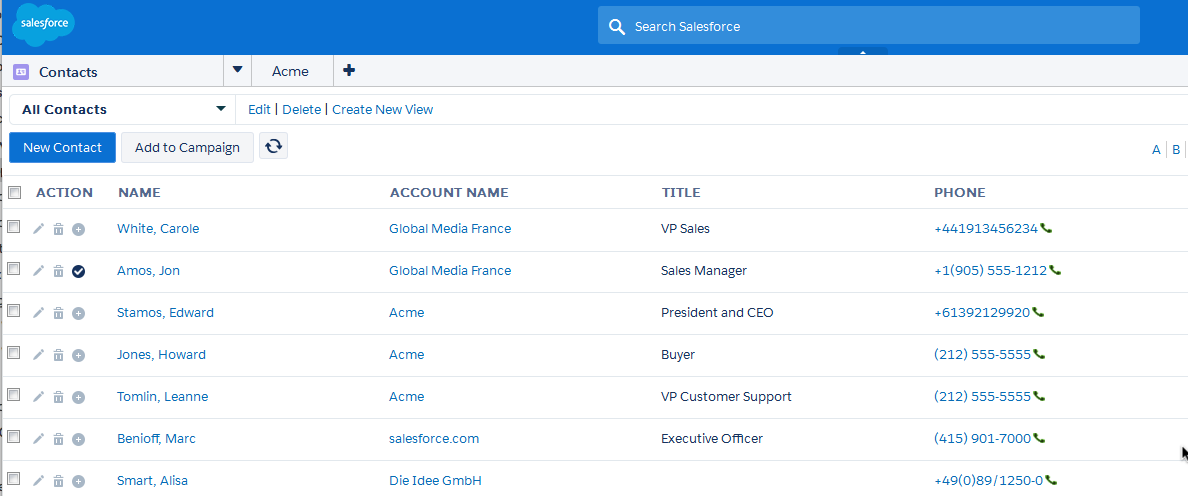
the **account** will load in the** primary tab** while the contact and the case will load in a **subtab**.
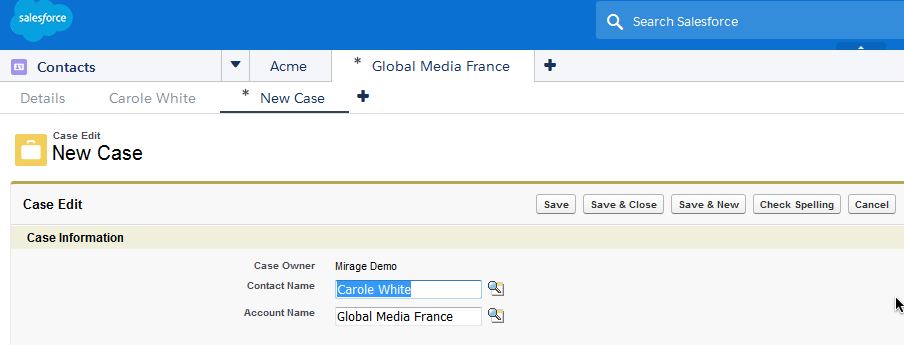
### Incoming calls
If an account or contact can be identified, the **account** will load in the** primary tab** while the contact and the case will load in a **subtab**.
### Assigning the case to the phone call
The CTI Data Connector SoftPhone will automatically display the account or contact name and assign it to the call.
::Image[]{src="https://helpserver.biz/onlinehelp/cdc/sf/5.0/help2000/images/hmfile_hash_b3c96e72.png" size="46" width="202" height="523" position="center" showCaption="false"}
If the case was **saved while the call was active**, the phone call will be automatically assigned to the case once the phone call is terminated.
::Image[]{src="https://helpserver.biz/onlinehelp/cdc/sf/5.0/help2000/images/service-cloud-case-assigned-mod.png" size="48" width="202" height="348" position="center" showCaption="false"}
If the phone call is terminated** before the case is saved**, the following steps are required:
•Save the case
•Click on the *Save button* in the CTI Data Connector SoftPhone to assign the call to the case
::Image[]{src="https://helpserver.biz/onlinehelp/cdc/sf/5.0/help2000/images/hmfile_hash_d5c48ccc.png" size="62" width="196" height="329" position="center" showCaption="false"}
Otherwise the call will be only assigned to the account or contact but not to the case.
:::hint{type="info"}
As the phone call creates a task it can be assigned to
•a contact **and** case
•a case (without account and contact)
•a contact (without case)
•a contact and account
•an account
but never **account and case at the same time. **Therefore a good idea is to always select a contact when a case is assigned.
:::
## Interaction Log
The special feature of the Service Cloud Console is the Interaction Log. You enter the** phone note in the Interaction Log** and not in the CTI Data Connector SoftPhone.
As the CTI Data Connector SoftPhone offers the same functionality with notes and the interaction log does have many limitations it is **not recommended **using the interaction log.

:::hint{type="info"}
•You can click on *Save Log* while the call is active but NEVER click on **Save & New Log **while the call is active
•Once when the call is **over** press **Save & New Log**
•If [Call Wrap-Up](https://helpserver.biz/onlinehelp/cdc/sf/5.0/help2000/call_wrap_up.html) / Call Result codes are enabled, you have to click on the button ***Save & New Log* AFTER** selecting a call result
•*[Automatically open task after end of outgoing / incoming call and save automatically](https://helpserver.biz/onlinehelp/cdc/sf/5.0/help2000/options-to-save-a-call.html#taskedit)* only works if you press the button *Save Log* while the call is **active**
:::
The option to [assign a call](https://helpserver.biz/onlinehelp/cdc/sf/5.0/help2000/assign-a-call-.html) to an account / contact etc. is not available as this is done using the Interaction Log.
How to turn on the Interaction Log see [Service Cloud Setup.](https://helpserver.biz/onlinehelp/cdc/sf/5.0/help2000/service_cloud_setup.html)
**Multi-Monitor support**
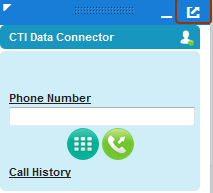
CTI Data Connector SoftPhone supports Multi-Monitor support in the Service Cloud Console. You can pop-out the CTI Data Connector SoftPhone and place it somewhere on the same monitor or on a different monitor.
The icon in the top right corner is enabled to drag the CTI Data Connector SoftPhone to a different screen.
Configuration: [Turn on Multi-Monitor support in Service Cloud](https://helpserver.biz/onlinehelp/cdc/sf/5.0/help2000/softphone_2.html#multimonitor)