---
title: Omni-Channel setup
slug: voice-german/omni-channel-setup
docTags:
createdAt: 2024-03-19T21:47:22.720Z
---
To use the Omni-Channel integration for CTI Data Connector for Salesforce®, Omni-Channel must be already enabled in your Salesforce organization.
## 1. Create a service channel
Select: *Setup > Feature Settings > Service > Omni-Channel > ****Service Channels***
Create a new service channel with the name: **CTI Data Connector**
*Create service channel*
## 2. Presence Statuses
Select: *Setup > Feature Settings > Service > Omni-Channel > ****Presence Statuses***
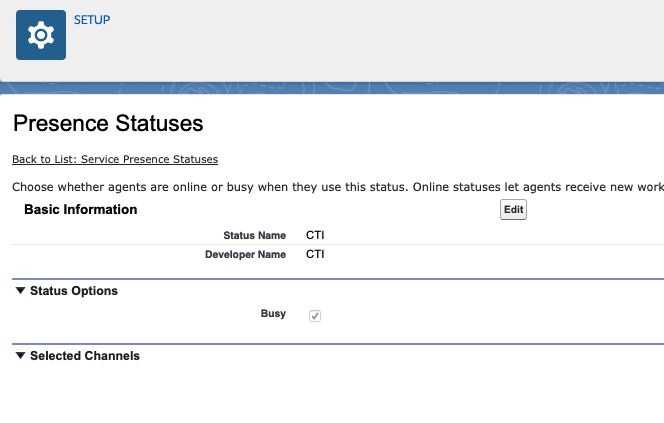
Create a new status:** CTI** where *Status Option* Busy **must be ticked.**
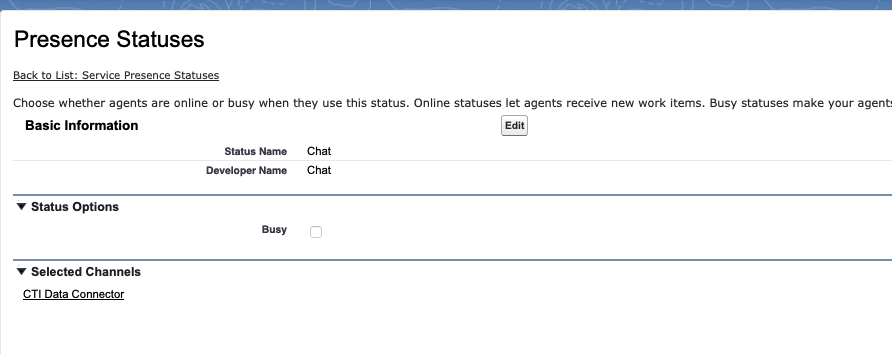
Now edit your other statuses like *Chat *or *Facebook* and add the channel: **CTI Data Connector**
## 3. Profiles
Select: *Setup > Administration > users > ***Profile**
Select all profiles for the users working with Omni-Channel and CTI Data Connector for Salesforce®.
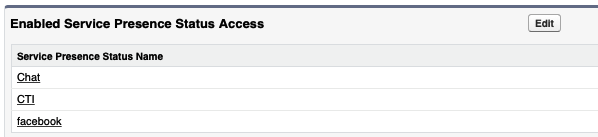
Select within the profile: **Enabled Presence Status Access**
Add: **CTI**
## 4. Set DND to on or off
Just setting the presence state to DND (Do Not Disturb) in the CTI Data Connector SoftPhone does not set the DND status on the phone itself. The phone would still receive calls.
CTI Data Connector for Salesforce® can send codes to the phone system to set DND to on or off. The phone system must support that feature. Sending the correct status to Skype for Business is an inbuilt feature.
The configuration is done in the [Call Center - Presence State](docId\:ic_BO24kHS0yU75wOUEyg) setup.
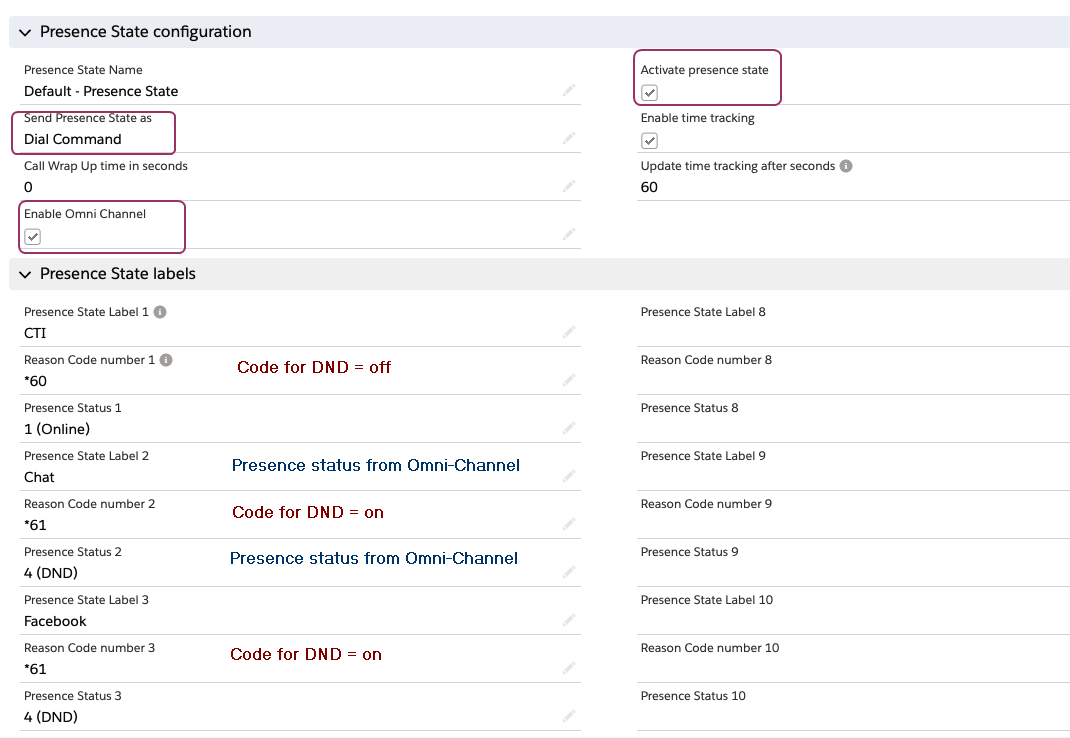
You need to
•Activate presence state
•Enable Omni-Channel
•For phone systems: Send Presence State as** Dial Command**
•For Skype for Business: Send Presence State as **Presence State**
Each presence state from Omni-Channel (like *Chat*) must be added and the code for DND = on must be used. The presence status *CTI (Online)* needs the code for DND = off.
:::hint{type="info"}
Selecting *Offline* in Omni-Channel will set the presence state in CTI Data Connector SoftPhone to **online**. The *Offline* status in Omni-Channel can not be configured because it is an inbuilt status. The only solution to set the CTI Data Connector SoftPhone to offline when is to add a second Offline status - e.g., *Offline Omni-Channel / CTI* , but there would be two different offline states.
:::
### Configuration for a phone system
Select: Send Presence State as** Dial Command**
### Configuration for Skype for Business
### Select: Send Presence State as Presence State
You can either use **DND** (Code 9500) or** Busy** (Code 6500) as presence state.
Ready for calls/online (Code 3500) will automatically set the status in Skype for Business to available.
