---
title: Inbound Calls
slug: voice-german/inbound-calls
docTags:
createdAt: 2024-03-13T21:30:12.998Z
---
## Inbound call
When a call comes in, the Microsoft Teams toast notification will be shown for a fraction of a second, disappear, and then signals the inbound call.
::Image[]{src="https://helpserver.biz/onlinehelp/cdc/sf/5.0/help2000/images/teams-inbound-toaster.png" size="54" width="592" height="430" position="center" showCaption="false"}
The caller ID is not visible in the toast notification. **The caller with all details instantly appears in the CTI Data Connector SoftPhone.**
You must **answer (accept) the call in the Microsoft Teams App.**
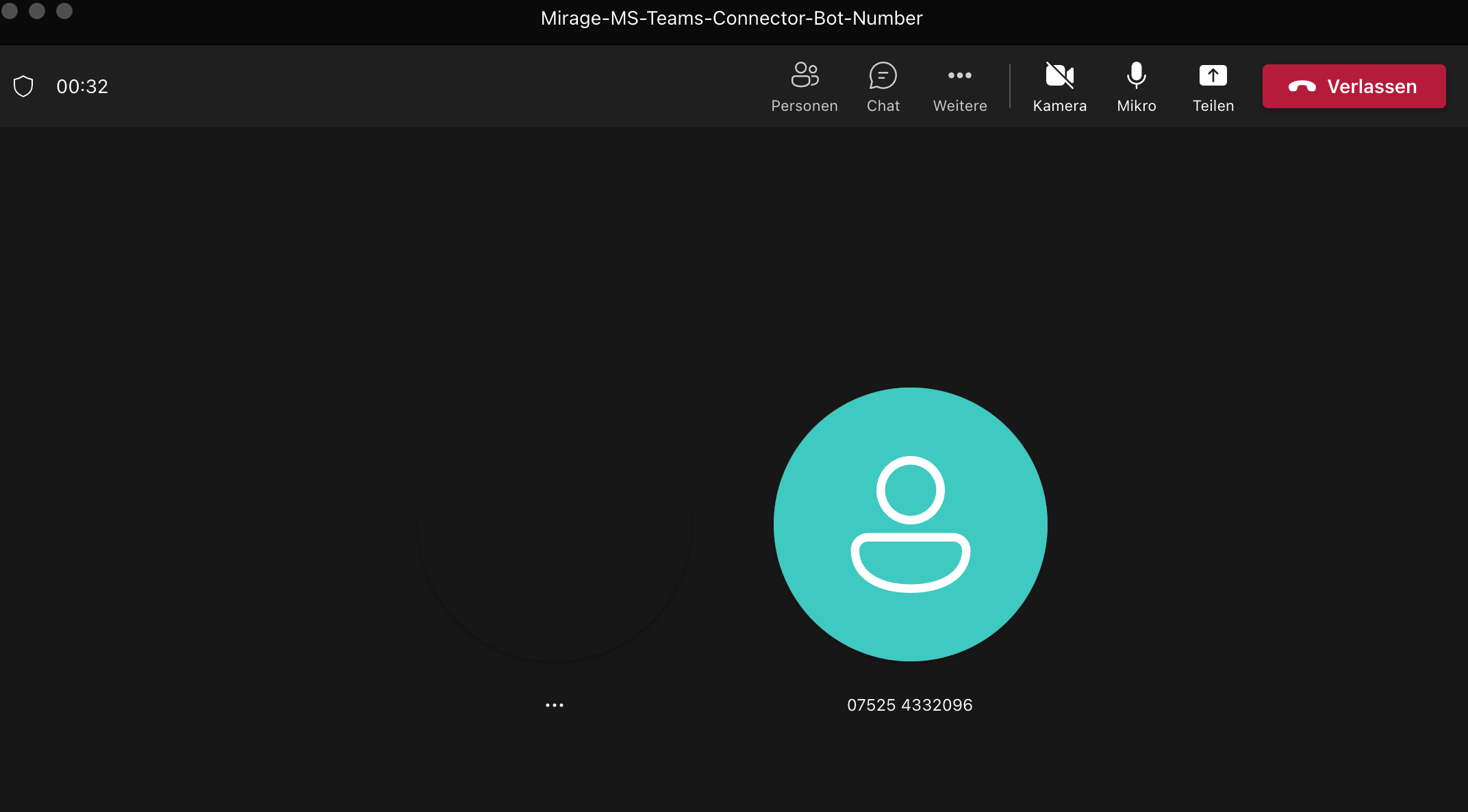
Once the call is active, the caller ID is displayed.
:::hint{type="info"}
If you **do not answer** the call, the answering rules will be used, e.g. forward the call to another Microsoft Teams user.
:::
### Call Controls
The following options to control the call are available in
**Salesforce**
•Put the call on hold in Salesforce by clicking on the orange :FontAwesome[]{icon="fa-solid fa-phone"} button and resume from hold with the green :FontAwesome[]{icon="fa-solid fa-phone"} button
•Blind Transfer
•End the call with the red :FontAwesome[]{icon="fa-solid fa-phone"} button
**Microsoft Teams App**
•Answer inbound call
•Reject the inbound call. It does not go to voicemail or any answering rule
•End the call
•Invite other callers to the call, e.g. another MS Teams user using the 👥 icon
•Call another Microsoft Teams user. The original call (landline call) will be put on hold. This function can also be used to briefly **hold a consultation** and then, if necessary, to connect further with Blind Transfer.
•Put the call on hold, transfer or park the call by clicking on the **three dots ...**
::Image[]{src="https://helpserver.biz/onlinehelp/cdc/sf/5.0/help2000/images/teamsapp-options.png" size="48" width="758" height="1304" position="center" showCaption="false"}
### Presence State
An inbound call is **not** signaled in the **Microsoft Teams App**, if the Microsoft Teams presence state is **Do Not Disturb** ⛔️, Presenting ⛔️, or Out of Office :FontAwesome[]{icon="fa-solid fa-circle-arrow-left"}. The call is signaled in the CTI Data Connector SoftPhone, will be logged as missed call (if configured), and will appear in the call history list.
:::hint{type="info"}
•Another incoming call is signaled when you are on a call. Only if the presence state is **Do Not Disturb** or **Presenting**, no inbound call comes in. The second call will be handled by the answering rules.
•Presence states are not synchronized with Salesforce (coming soon)
:::
### Call History List Microsoft Teams
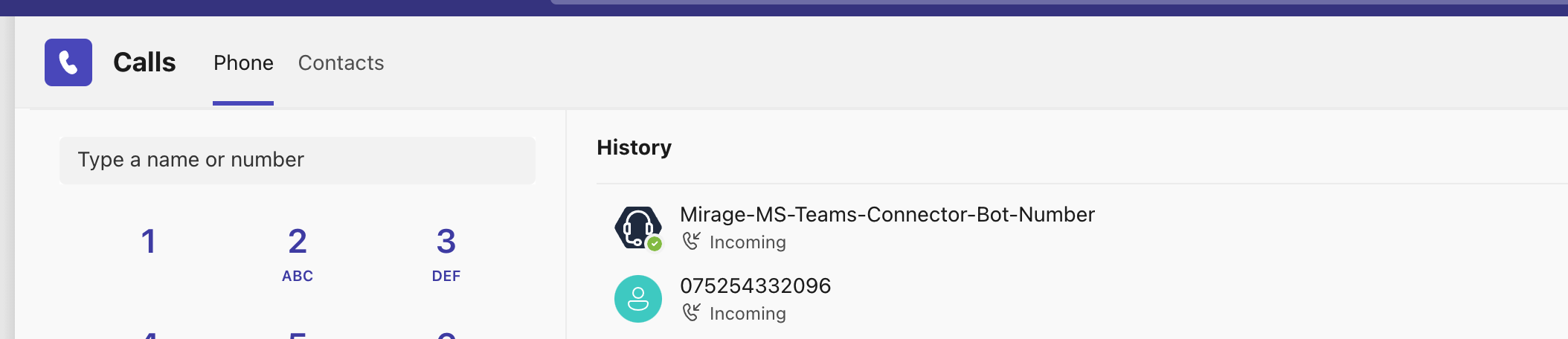
The call history list will show** two** entries
•The Mirage MS Teams Connector Bot
•The caller ID
### Caller terminates call during ring state
If a caller terminates the call **before **the call was answered (ring state), you will get a message in the CTI Data Connector SoftPhone. Microsoft Teams will still show the call as ringing. You can terminate the call in the Microsoft Teams App.
::Image[]{src="https://helpserver.biz/onlinehelp/cdc/sf/5.0/help2000/images/caller-terminates-ringing.png" size="72" width="544" height="528" position="center" showCaption="false"}
## Reject a call
You can reject a call with the red :FontAwesome[]{icon="fa-solid fa-phone"} button in the CTI Data Connector SoftPhone or in the Microsoft Teams App. The call answering rules will be used - e.g. voicemail. After rejecting a direct extension call, your status will switch to ⛔️. Do Not Disturb if the call answering rule is set to** Use MS Teams settings. **This prevents getting more calls signaled.
## Second inbound call
If a call is active and a new call is signaled in the Microsoft Teams App, you can answer the new call in the Microsoft Teams App. This will place the first call *on hold*. In case the first call is terminated, the second call will be active. However the presence state for the second call could be wrong (not *On a call*).