---
title: Desk Phone - Mirage uaCSTA Cloud Connect
slug: voice-german/desk-phone-mirage-uacsta-cloud-connect
docTags:
createdAt: 2024-03-19T22:35:06.403Z
---
Mirage uaCSTA Cloud Connect offers a direct connection to the [Mirage Cloud service](https://helpserver.biz/onlinehelp/cdc/sf/5.0/help2000/mirage_cloud_-_open_cti_servic.html) . A local installation of the CTI Data Connector - TAPI Link is not required.

*VOIP with special handset (Windows and MAC OS)*
## Desk Phones for Mirage Mirage uaCSTA Cloud Connect
***Mirage uaCSTA Cloud Connect*** is a special service which works with Desk Phones supporting the** uaCSTA** (User Agent Computer Supported Telecommunications Applications) protocol.
| **Brand** | **Model** | **Firmware** | **Website** |
| -------------- | ------------------------------------------------------------------------------------------------------------------------------------------------------------------- | ------------------------------------------------------------------------------- | ---------------------------------------------- |
| Snom | 300, 320, 360, 370, 720, 760, 820, 821, 870, D710, D715, D725, D765 | 8.9 or higher. Some older Snom work with 8.7 | [www.snom.com](http://www.snom.com/) |
| Yealink | T42G, T46G, T48G, T5 series - and many more - [Yealink information about all supported phones](http://support.yealink.com/faq/faqInfo?id=542). T19 is not supported | xx.**82** (second number must be version 82) or higher | [www.yealink.com](http://www.yealink.com/) |
| Mitel (Aastra) | Mitel 68series | Mitel 68xx - v4.3.0.39 or later | [www.mitel.com](http://www.mitel.com/) |
| Panasonic | any with uaCSTA support | Panasonic UT: TBC, Panasonic HDV: TBC. Comes with old Firmware. Must be updated | [www.panasonic.com](http://www.panasonic.com/) |
If your Desk Phone is not listed but comes with uaCSTA, just try if it connects.
## Configure Call Center Adapter
•You have to enable using an own Login ID. The Login ID in Salesforce will be your complete phone number you configure in the Desk Phone.
•SoftPhone handles dialing rules must be set to Y
## Configuration Desk Phone
You have to configure the Mirage uaCSTA Cloud Connect account in your Desk Phone.
### Setups for Cloud PBX provider with Auto Provisioning
The following Cloud PBX providers do have predefined configurations and the Desk Phone is configured automatically.
•Nfon
•Placetel
### Setups for all Cloud PBX providers
A separate account for the Mirage uaCSTA Cloud Connect is required. The configuration could be different depending on the brand of the Desk Phone.
The following data is required as input.
•Account: A **unique** ID per user. This account ID will be used as the Login ID in Salesforce. **The ID may not contain spacers, lowercase letters and any special character like @ #**
**For security reasons a 20 digit ID is recommended which is known only to you. [Generate ID](https://www.newpasswordgenerator.com/generate.php?type=0\&length=20\&lowercase=0\&uppercase=1\&numbers=1\&symbols=0) (external Web service)**
This automatic generated ID consists of numbers and uppercase characters and works with all connectors.
•Password: **miragecloud**
•Registrar. The IP address to Mirage uaCSTA Cloud Connect including Port 6050 - example: *ie1.pbx.miragecloud.com:6050*
•Proxy Server: Same as registrar. Configure Proxy for TCP protocol - - example: *ie1.pbx.miragecloud.com:6050***;transport=tcp**
After configuring the Desk Phones, open a ticket in the Support Center with the following information
•**Direct extension **of the Desk Phone. If you configured several Desk Phones specify all extension numbers
•The **server IP address** used like ie21.pbx.miragecloud.com
•Each Desk Phone needs a **unique Login ID** you specified in the account**. **Provide this ID in the ticket for each Desk Phone
•Once you get the the Desk Phone activated from support add the Login ID in the user record.
### IP for Mirage uaCSTA Cloud Connect
Find below the configuration for the different Desk Phones
### Snom
First check the firmware version. It must be 8.9 or newer. For some older Snom Desk Phones minimum version is 8.7.
Type in the IP address of the Desk Phone into the Browser.
Then add the account. You have to configure the last account (typically **identity 12 or 4)** with the following account details.
| |
| - |
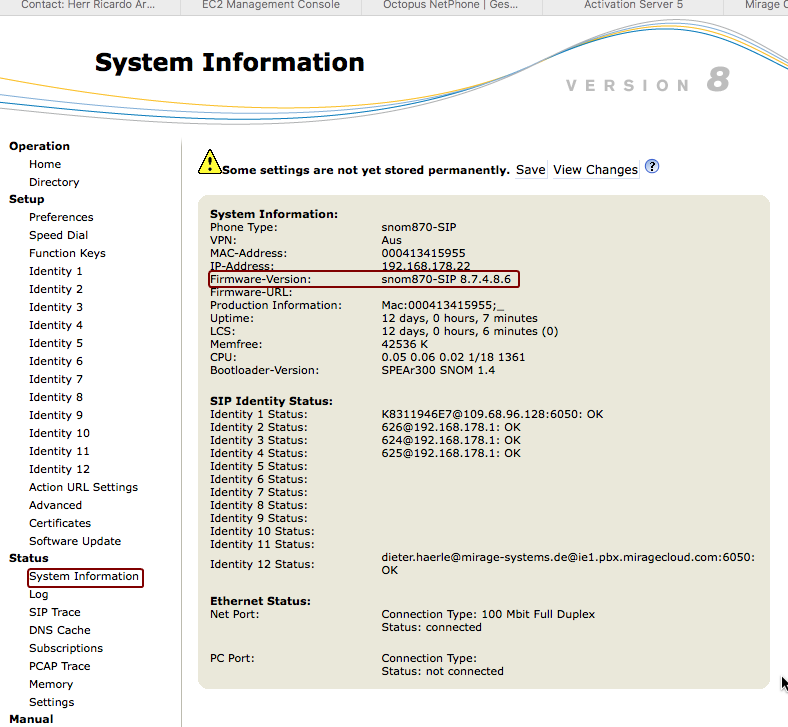
[Download Firmware](http://wiki.snom.com/Category\:Firmware)
Then add the account. You have to configure the last account (typically **identity 12 or 4)** with the following account details.
Account = [Login ID for Salesforce](https://helpserver.biz/onlinehelp/cdc/sf/5.0/help2000/handset---mirage-cloud-connect.html#loginid)
Password: miragecloud
## Mirage uaCSTA Cloud Service IP
You should select the data center **depending on your Salesforce instance**.
To find out which Salesforce instance you are using [click here](http://trust.salesforce.com/trust/domainLookupLaunch/)
| **Mirage uaCSTA Cloud Service IP** | **Salesforce instance** | **Location** | **Remark** |
| ---------------------------------- | ----------------------- | ------------ | ------------------------------------------------------------------------ |
| IE21.pbx.miragecloud.com | EU0 to EU2 | Ireland | Default for all countries |
| IE22.pbx.miragecloud.com | EU3 to EU11 | Ireland |
|
| DE6.pbx.miragecloud.com | all instances | Ireland | mandatory for Nfon and Desk Phones where you can not change the login ID |
| DE7.pbx.miragecloud.com | EU0 to EU2 | Ireland |
|
| DE8.pbx.miragecloud.com | EU3 | Ireland |
|
| DE9.pbx.miragecloud.com | EU4 | Ireland |
|
| DE10.pbx.miragecloud.com | EU5-EU11 | Ireland |
|
| SI3.pbx.miragecloud.com | AO0 to AP1 | Ireland |
|
| SI4.pbx.miragecloud.com | AP2 to AP3 | Ireland |
|
| US6.pbx.miragecloud.com | NA0 to NA9 | Ireland |
|
| US7.pbx.miragecloud.com | NA10 to NA19 | Ireland |
|
| US8.pbx.miragecloud.com | NA20 to NA29 | Ireland |
|
| US9.pbx.miragecloud.com | NA30 to NA39 | Ireland |
|
| US10.pbx.miragecloud.com | NA40 to NA49 | Ireland |
|
|
|
|
|
|
| select the nearest location | Sandbox |
|
|
Right now the only available location for this service is Ireland.
Registrar example: ie20.pbx.miragecloud.com:6050 (Note xx must be replaced with an IP Address from from the list above)
For the outbound proxy, add **;transport=tcp**
Outbound Proxy example: ie1.pbx.miragecloud.com:6050**;transport=tcp**
**CSTA must be enabled**

### Yealink
First check the firmware version. It must be xx.**82** (second number must be version 80).
Type in the IP address of the Desk Phone into the Browser. The default user name is: admin. Default password is: admin. Then add the account. You can use **account 2** or higher for the setup.
[Download Firmware](http://support.yealink.com/documentFront/forwardToDocumentFrontDisplayPage)
Upgrade firmware

Then add the account. You can use **account 2** or higher for the setup.
Display Name / Register Name = [Login ID for Salesforce](https://helpserver.biz/onlinehelp/cdc/sf/5.0/help2000/handset---mirage-cloud-connect.html#loginid)
Password: miragecloud
**Transport protocol must be TCP**
CSTA must be enabled

### Mitel (Aastra)
Mitel cannot be configured using the web interface. You have to load a configuration file (\.cfg where \ is the mac address of the phone)
•Contact support for a sample configuration file.
•Change the uaCSTA Cloud Connect Service IP address (see above)
•Use the mac address of the Desk Phone as filename - e.g. 00085d0304f4.cfg
•[Information about Mitel CFG files](https://www.manualslib.com/manual/929400/Mitel-6863i.html?page=953#manual)
## Possible cause of an error
•Check if the phone has the latest firmware installed
###
### Check if uaCSTA is activated
•Snom - enable uaCSTA
:::hint{type="danger"}
You have to install CTI Data Connector SoftPhone application 5.5.051 or greater to use this functionality.
•A CTI user license is required
•For each CTI user license only 1 Desk Phone can be registered
:::
***See also***
**Data stored for each uacsta Desk Phone** in [Mirage Cloud Service](docId:0R4r056SG7vVnzPQQ4ZJs)