---
title: Create a Call Campaign
slug: voice-german/create-a-call-campaign
docTags:
createdAt: 2024-03-13T20:14:18.345Z
---
Depending on permissions, there are several ways to create a new campaign.
## Create a campaign within the Power Dialer
A user can directly create a new campaign in the campaign selection list with standard user permissions. At the end of the list, there is an option: **New Call Campaign**
::Image[]{src="https://helpserver.biz/onlinehelp/cdc/sf/5.0/help2000/images/new-campaign-from-list.png" size="48" width="560" height="958" position="center" darkWidth="560" darkHeight="958" showCaption="false"}
::Image[]{src="https://helpserver.biz/onlinehelp/cdc/sf/5.0/help2000/images/create-campaign.png" size="54" width="3336" height="1218" position="center" darkWidth="3336" darkHeight="1218" showCaption="false"}
The personal call campaign has additional settings.
Maximum Calls Per Day / Campaign Member
Set the number of times a campaign member may be called in a day. If the limit is reached, the user will get a notification to postpone the next call.
Campaign Result
Specify one or several results a user can select once he sets the campaign call to **complete**
## App - Mirage Power Dialer Setup
Power Dialer Administrators should use the APP.
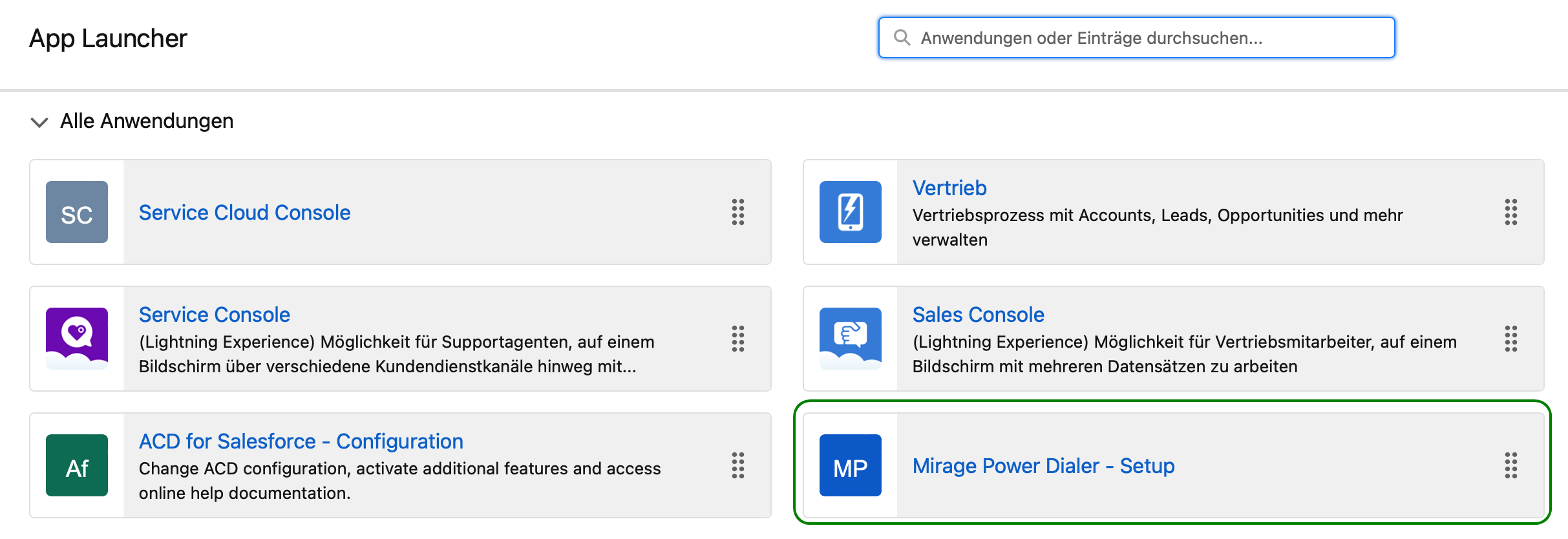
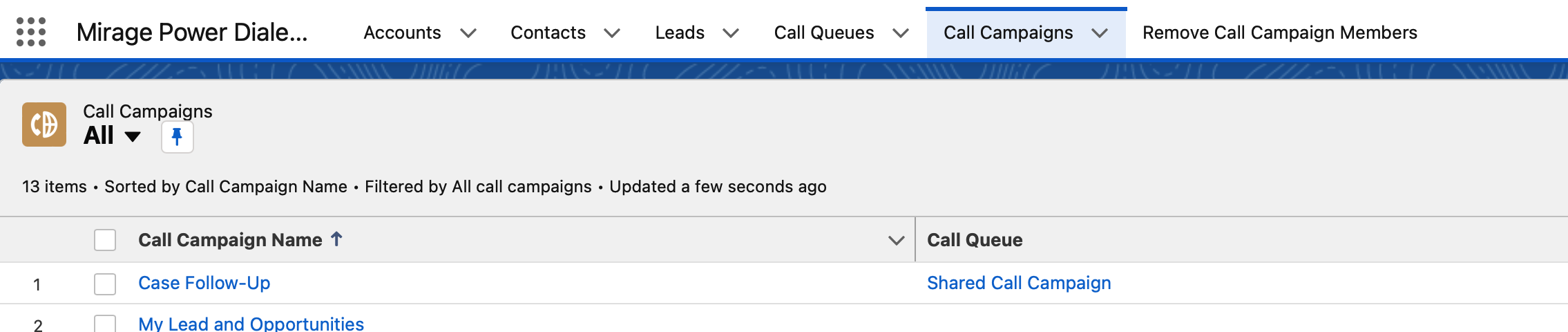
After clicking on the button: **New** , the Power Dialer Administrator can create **personal call campaigns** and **group call campaigns.**
## Personal Call Campaign
While creating the personal call campaign, the Power Dialer Administrator can assign a **user **to the campaign. Only Salesforce users who have a license and are active are displayed.
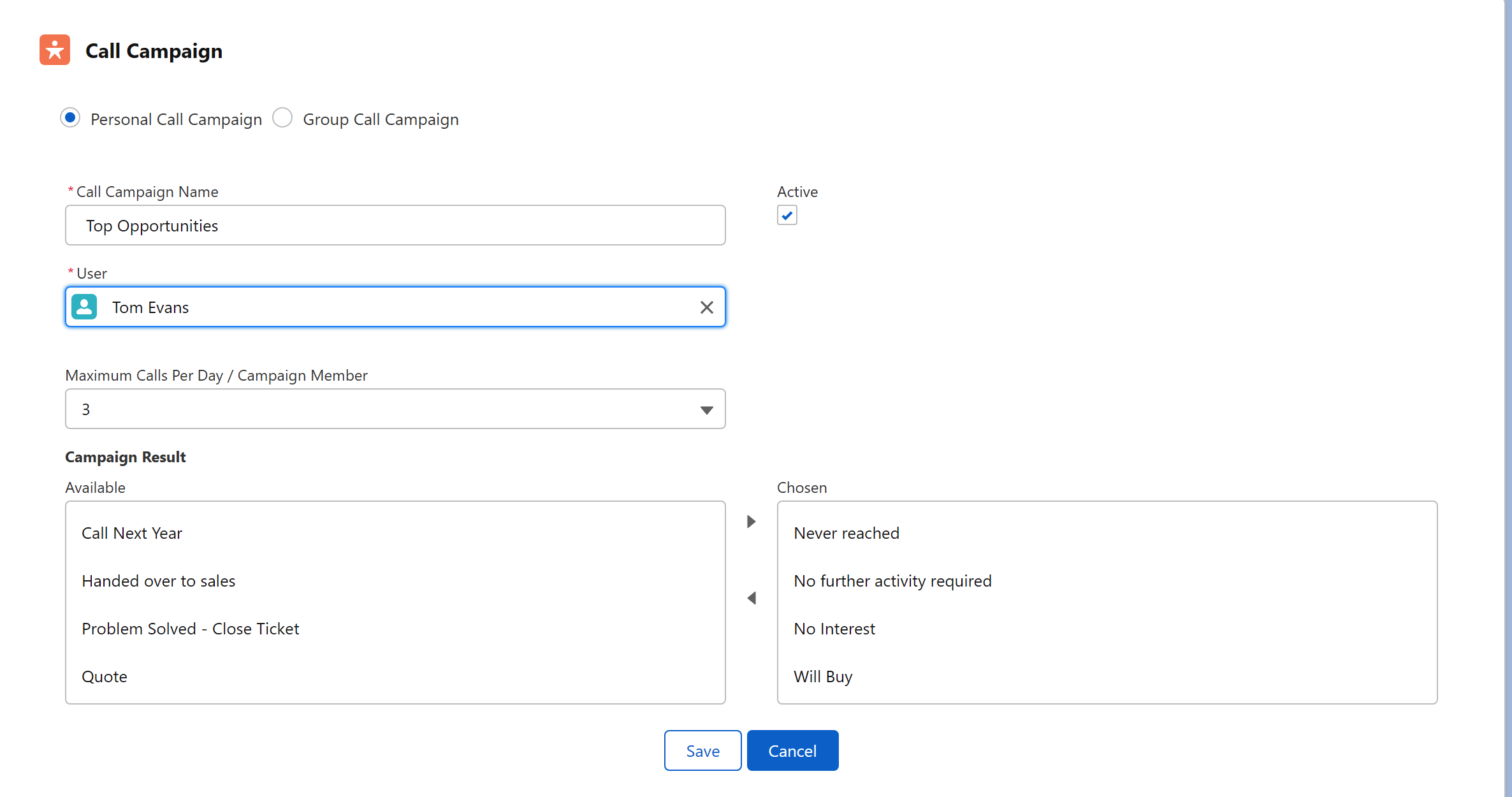
The personal call campaign has additional settings.
Maximum Calls Per Day / Campaign Member
Set the number of times a campaign member may be called in a day. If the limit is reached, the user will get a notification to postpone the next call.
Campaign Result
Specify one or several results a user can select once he sets the campaign call to **complete**
## Group Call Campaign
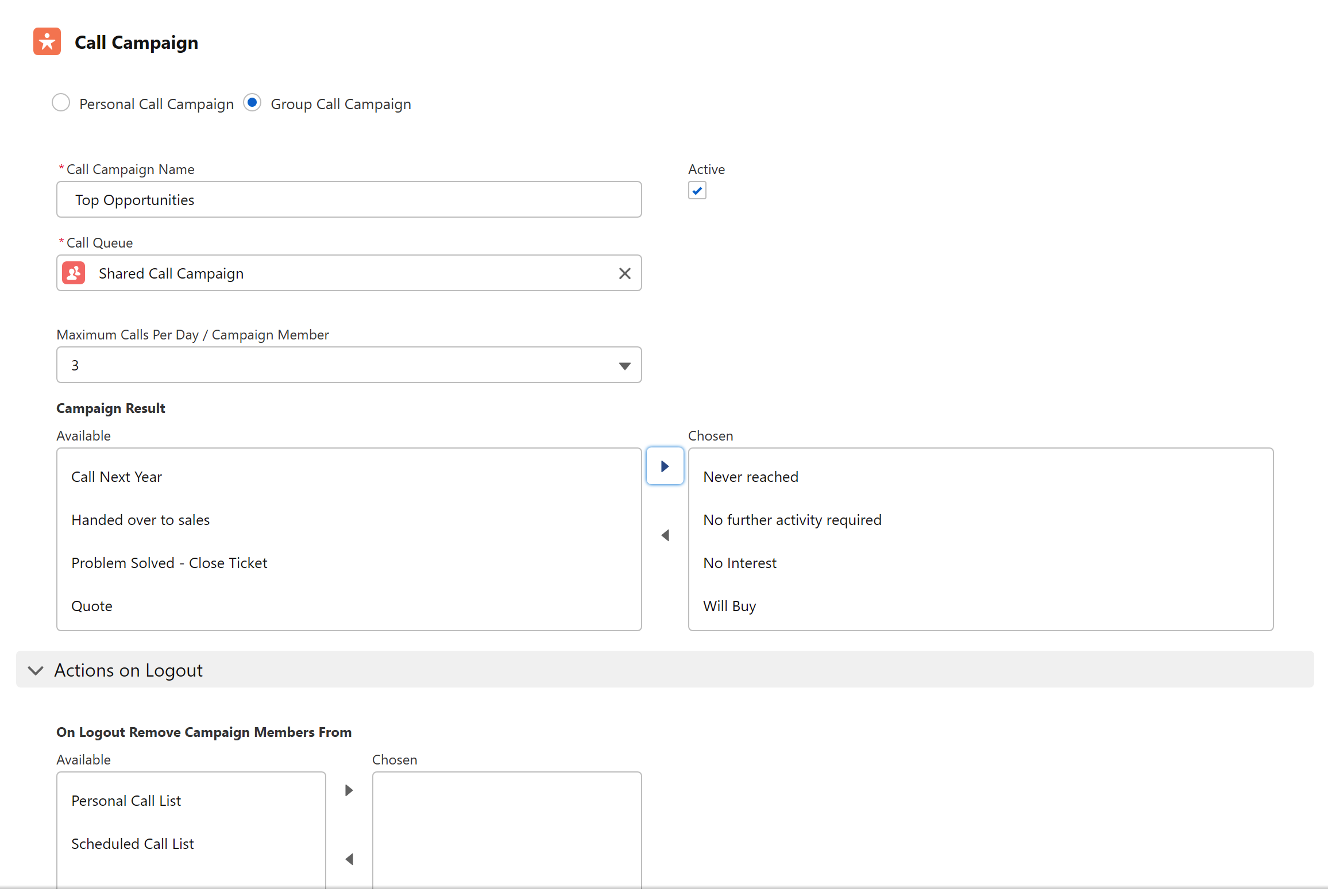
While creating the personal call campaign, the Power Dialer Administrator can assign a **group **to the campaign.
### Campaign Settings
The group call campaign has additional settings.
Maximum Calls Per Day / Campaign Member
Set the number of times a campaign member may be called in a day. If the limit is reached, the user will get a notification to postpone the next call.
Campaign Result
Specify one or several results a user can select once he sets the campaign call to **complete**.
Actions on Logout
This option is only for group call campaigns and defines if records that are in the** personal call list** or **scheduled call list** should go back to the group call list. This ensures that after a user logs out from Salesforce, the campaign members are no longer locked and go back to the group call list.
If this option is not selected, the call members would remain assigned to the user after logout and could not be called by other members of the group.
The logout event is triggered when a user **logs out from Salesforce** or selects **Logout as presence state**.