---
title: Configure MS Teams app
slug: voice-german/configure-ms-teams-app
createdAt: 2024-03-13T21:19:52.036Z
---
Before using the MS Teams integration, you need to do a few basic configuration settings. Your Salesforce administrator could have already provided default configuration values.
## Mandatory Configuration
Open the CTI Data Connector SoftPhone and click on the gear icon.
## Configure Office 365 Email address
Only if your Salesforce email address differs from the Office 365 email address, enter the Office 365 email address here.
::Image[]{src="https://helpserver.biz/onlinehelp/cdc/sf/5.0/help2000/images/teams-configure-mail.png" size="44" width="546" height="504" position="center" darkWidth="546" darkHeight="504" showCaption="false"}
## Also Ring Number
::Image[]{src="https://helpserver.biz/onlinehelp/cdc/sf/5.0/help2000/images/teams-configure-alsoring.png" size="54" width="546" height="606" position="center" darkWidth="546" darkHeight="606" showCaption="false"}
This number must be added to your **Microsoft Teams-App**. Without this configuration, inbound calls would not be signaled in Salesforce.
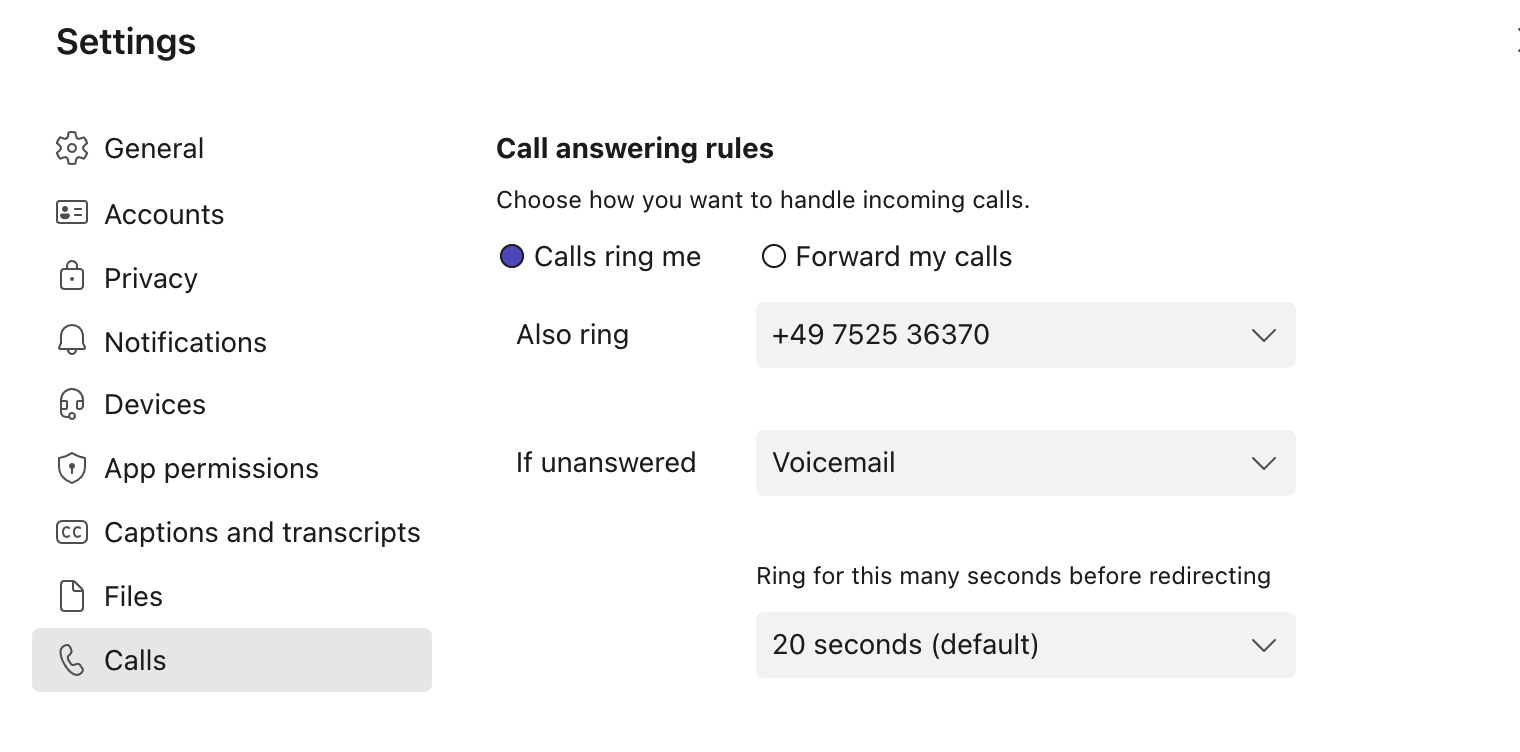
Open your Microsoft Teams-APP and select *Settings / Calls*. Select **Calls ring me** and in the field **Also ring,** select: **New Number or contact**, and add the phone number displayed in the CTI Data Connector SoftPhone.
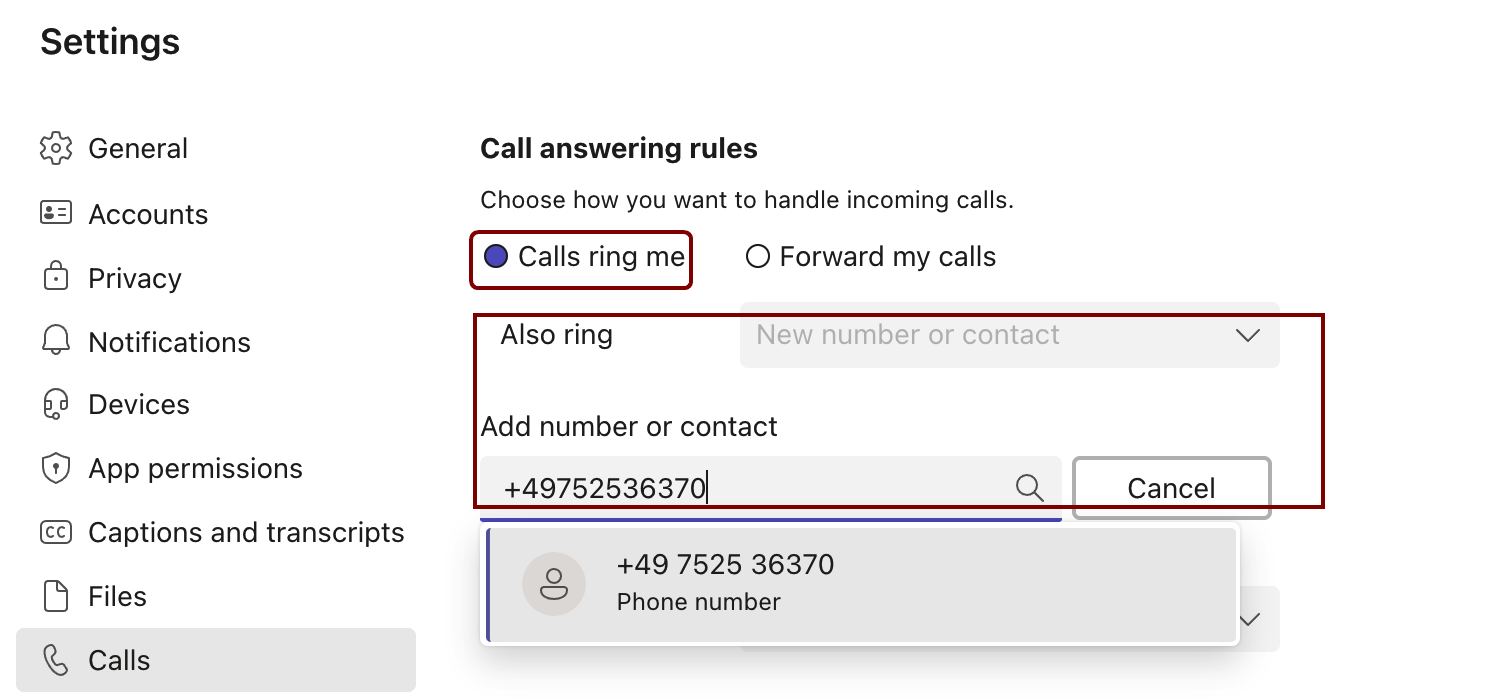
After adding the phone number, you should see this result.
## Optional but recommended configuration
## Configure Call Answering Rules
The call answering rules are used only for **inbound calls**. Rules configured in the Microsoft Teams-App will not be used. You have to configure the rules in the CTI Data Connector SoftPhone.
The rules will be used if you do not answer the phone call within x seconds.
::Image[]{src="https://helpserver.biz/onlinehelp/cdc/sf/5.0/help2000/images/teams-configure-answering-rule.png" size="52" width="540" height="706" position="center" darkWidth="540" darkHeight="706" showCaption="false"}
### Enable Call Answering Rules
This option should be always checked to ensure that **missed inbound** calls are redirected.
### Ring before redirecting (seconds)
Configure the number of seconds after which a call is redirected if not answered.
### Redirect to
There are multiple options for redirecting a call.
::Image[]{src="https://helpserver.biz/onlinehelp/cdc/sf/5.0/help2000/images/teams-redirect-options.png" size="50" width="542" height="726" position="center" darkWidth="542" darkHeight="726" showCaption="false"}
Other Microsoft Teams User
You can redirect to another MS Teams user by adding the Office 365 email address.
::Image[]{src="https://helpserver.biz/onlinehelp/cdc/sf/5.0/help2000/images/teams-redirect-teamsuser.png" size="50" width="538" height="834" position="center" darkWidth="538" darkHeight="834" showCaption="false"}
Redirect to CTI Data Connector for Salesforce® user with MS Teams
You can redirect to another user with MS Teams **and** a CTI Data Connector for Salesforce® license.
To do this, you can find the user with the first or last name.
::Image[]{src="https://helpserver.biz/onlinehelp/cdc/sf/5.0/help2000/images/teams-redirect-ctiuser.png" size="48" width="520" height="830" position="center" darkWidth="520" darkHeight="830" showCaption="false"}
Redirect to personal Voicemail / personal MS Teams redirect options
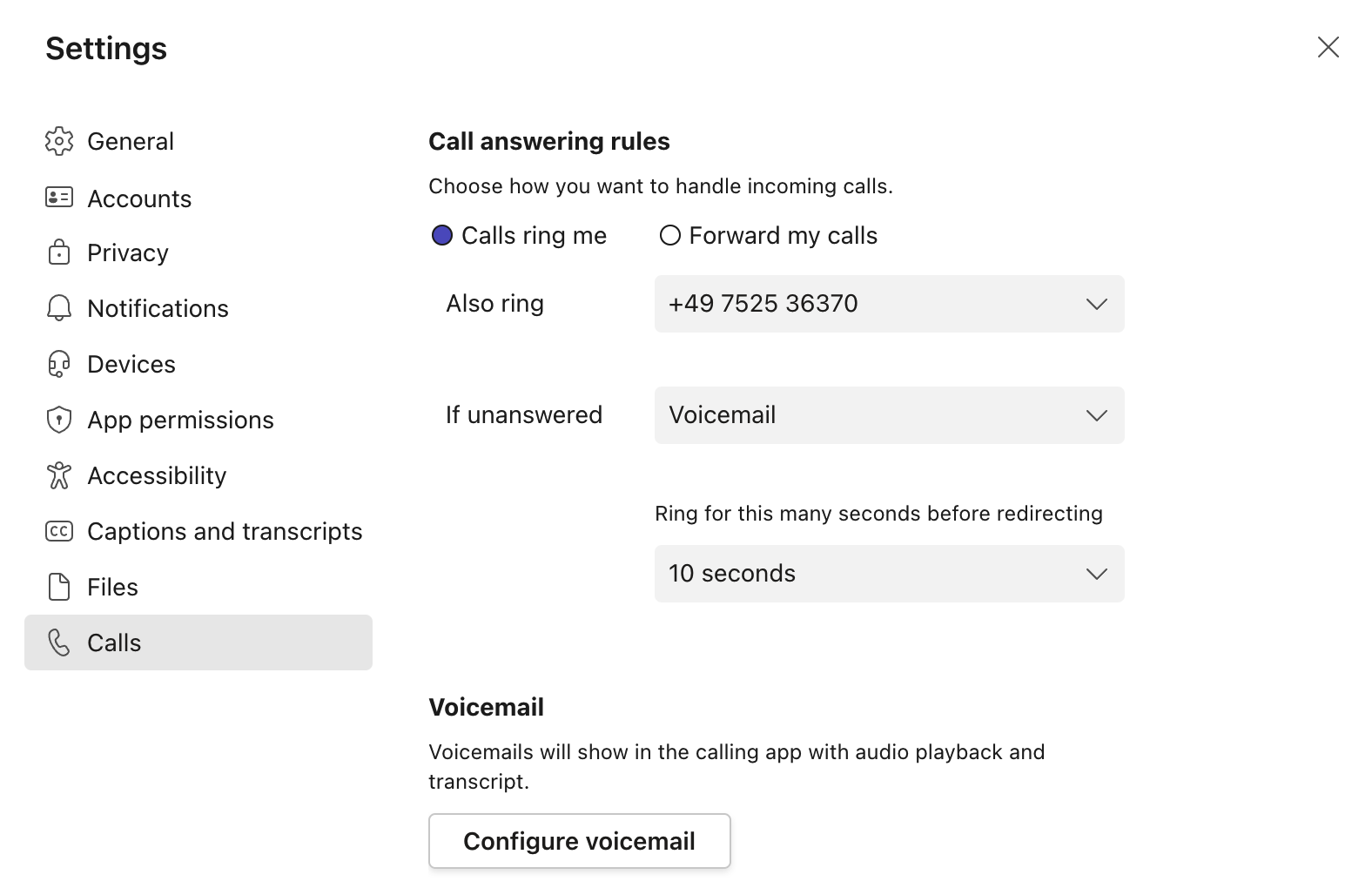
Select: **Use MS Teams Settings**. This option will use the **personal Microsoft Teams App** call answering rules
Important: The time should be set to **10** seconds.
::Image[]{src="https://helpserver.biz/onlinehelp/cdc/sf/5.0/help2000/images/teams-redirect-localmsteamssetting.png" size="48" width="546" height="714" position="center" darkWidth="546" darkHeight="714" showCaption="false"}
If you want to go the call to voicemail, select this option in the MS Teams client. *Ring for this many seconds* before redirecting should be set to **10**.
Redirect to Shared Mailbox
Your MS Teams administrator can configure a shared mailbox for you. If a caller leaves a message, all members of that shared mailbox will get an e-mail with the audio message.
::Image[]{src="https://helpserver.biz/onlinehelp/cdc/sf/5.0/help2000/images/teams-shared-voicemail.png" size="50" width="538" height="836" position="center" darkWidth="538" darkHeight="836" showCaption="false"}
Redirect to Phone Number
You can redirect to any internal or external phone number.
::Image[]{src="https://helpserver.biz/onlinehelp/cdc/sf/5.0/help2000/images/teams-redirect-phonenumber.png" size="54" width="542" height="842" position="center" darkWidth="542" darkHeight="842" showCaption="false"}