---
title: Call Center - SoftPhone
slug: voice-german/call-center-softphone
docTags:
createdAt: 2024-03-19T14:51:42.381Z
---
Configure additional features for the CTI Data Connector SoftPhone.
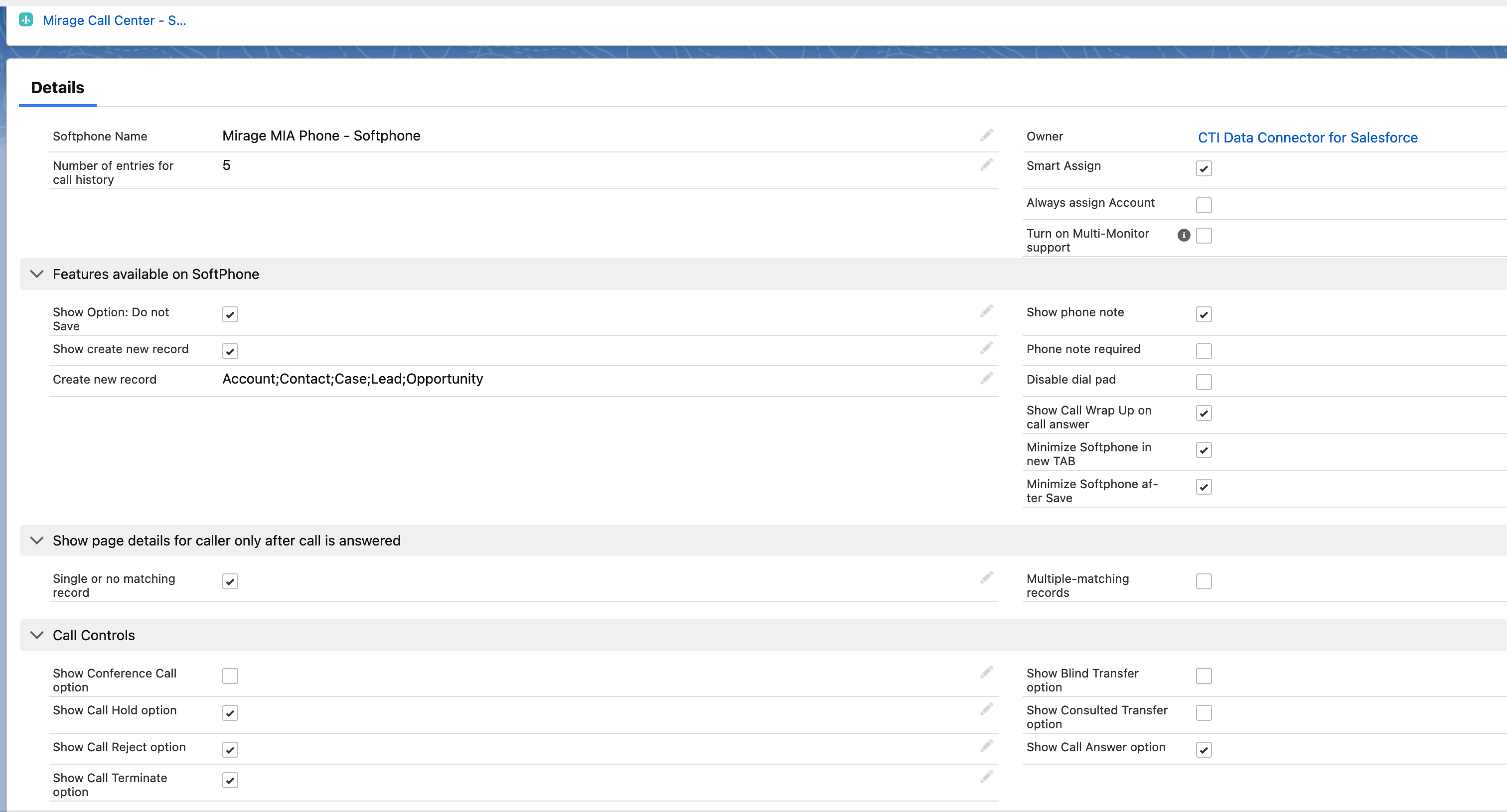
## General Configuration
*Number of entries for call history*
Set the number of records which are displayed in the call history list
*Smart Assign*
•Enabled (default) will automatically assign a record to a call once a user **navigates to this record and there is no object assigned so far. **Once an object is assigned it is not changed.
•No will only change the record when the *Assign button* is clicked to manually assign a new record
Details see [Assign a call (Smart Assign)](docId\:zdLxGPLxyQQVeMHzQF4ln)
*Turn on Multi-Monitor support in Service Cloud*
Allows to move the CTI Data Connector SoftPhone to another monitor or different screen area
## Features available on SoftPhone
*Option: Do not Save*
Allows the user to **not save **one single call as an activity (e.g. for personal calls)
*Show Create New Record*
Enables a picklist to create a new record during the call (see below)
*Create New Record or launch Flow / Visualforce Page*
While a** call is active and after the call** (until *Save* button is clicked), a new record can be created - e.g. lead, opportunity or case. Alternatively you can launch a flow or visualforce page. For Lead, Account and Contact the phone number will be automatically inserted. Other objects like cases will be automatically have the caller data (e.g. contact) inserted. The newly created record will be** assigned to the call**.
To activate this feature, check: *Show create new record* and then assign the objects you want to be available for the user to select.
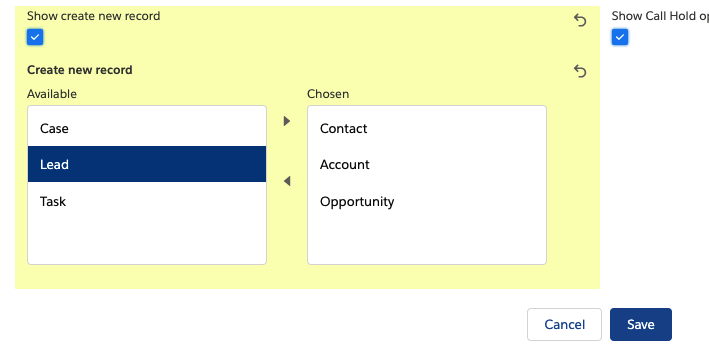
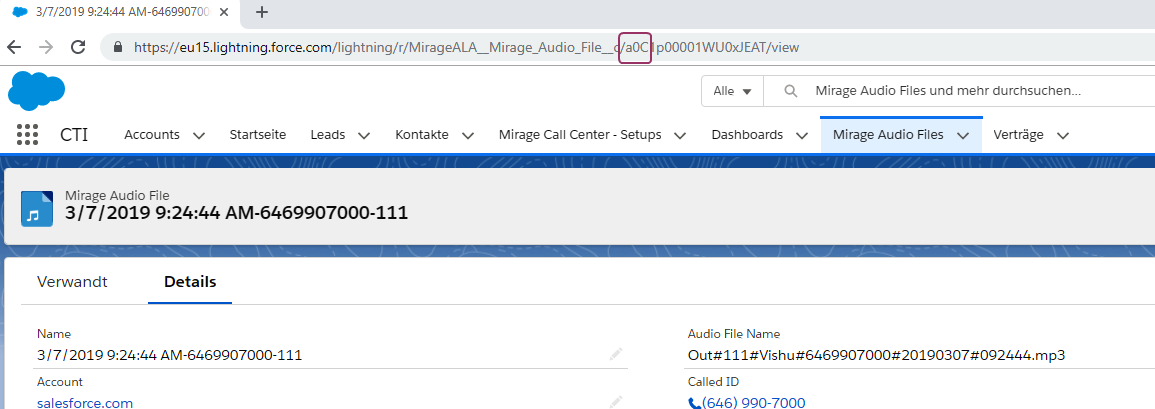
You can add other records or custom objects. Open the object you want to add and retrieve the** first 3 characters after the last / in the URL**
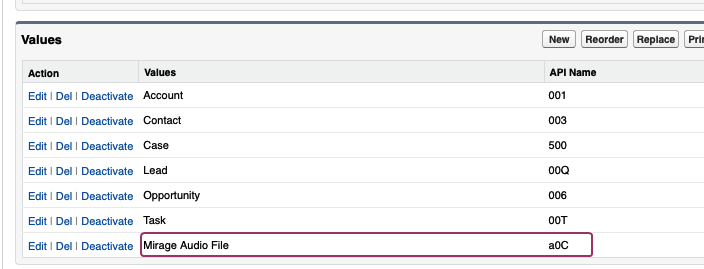
Then you need to add the object in the picklist
Select: *Setup - Object and Fields - Object Manager*
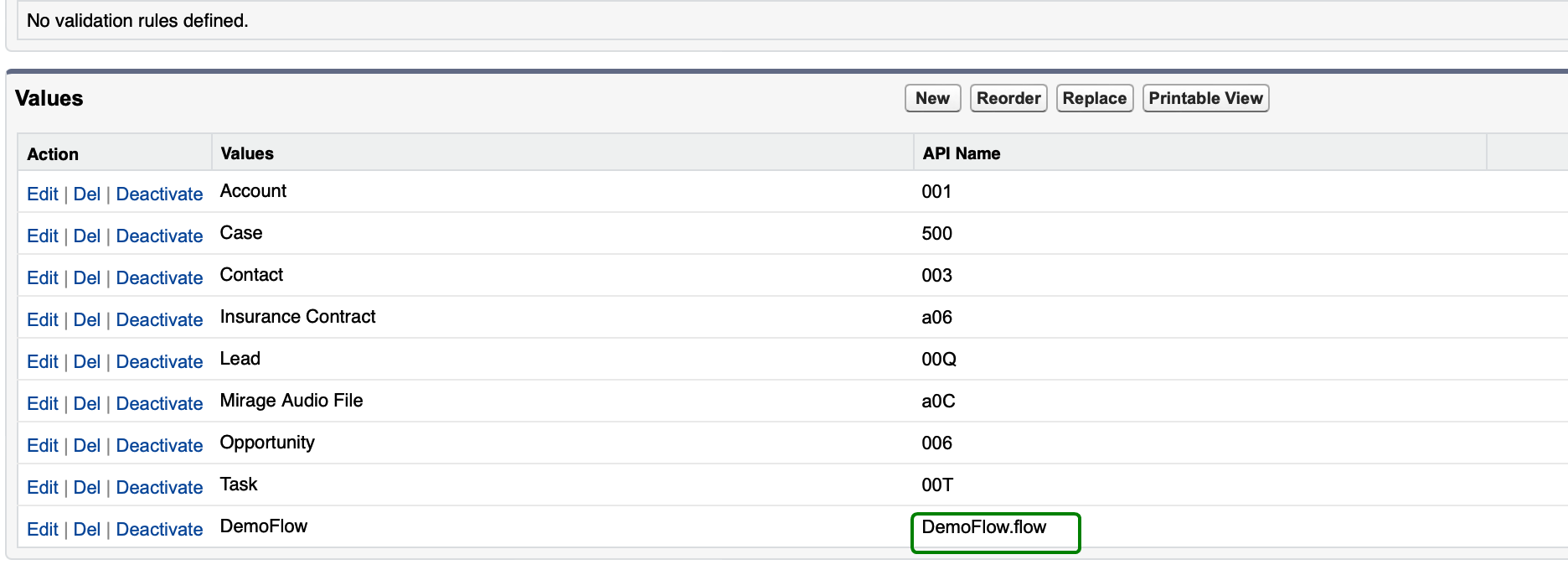
and here select **Mirage Call Center - SoftPhone** and the field: **Create new record**
Add your object. In the column: **API Name** add the 3 characters retrieved from the URL of the object (see above screenshots)
**Flow or Visualforce page**
Create a flow and add the **flow name as API name.**
The following parameters are passed to the flow or Visualforce page via **URL** in exactly the order listed.
**recordId > ivrId> whoId> whatId> whoAccountId > ANI > DNIS > callType**
•recordId = record ID of the object, e.g. contact that started the call or received the call
•ivrId = ID which was selected in the IVR - e.g. case number
•whoId = Contact/ Lead assigned to call in CTI Data Connector SoftPhone referenced in Name (whoId) field on task
•whatId = Account/ Opportunity etc. assigned to call in CTI Data Connector SoftPhone , referenced in Related To (whatId) field on task
•whoAccountId = Account related to whoId. This field is not present on task. Also this account is not assigned to the call. It is just shown in CTI Data Connector SoftPhone top area
•ANI = value from CallerId field of task. Will change as per call type (Caller ID / Called ID)
•DNIS = value from CalledId field of task. Will change as per call type (Caller ID / Called ID)
•callType = Stored in call type field on task. Can be - Inbound/ Outbound/ Internal
If a parameter is unavailable, it will still be sent in the URL with an empty value so that the user can rely on the sequence of the parameters.
See: [Create new record during call](docId\:wUV50ZJzZkjNi5CPjHHq_)
*Disable dial pad*
If enabled, the dialpad to dial in the CTI Data Connector SoftPhone does not show
*Show phone note*
The phone note can be disabled in case no notes should be typed in (e.g. in combination with the interaction log)
*Phone note required*
If the phone note is missing and the user clicks on the button: *Save*, he gets a message to add a note.
Note
The phone call would still be saved to ensure that all other details of the call are not lost.
*Show Call Wrap-Up on call answer*
Shows the call wrap-up option after the call is answered
*Minimize SoftPhone in new TAB*
The CTI Data Connector SoftPhone is minimized when the TAB is changed or opened. This speeds up the opening of the page in the new TAB.
*Minimize SoftPhone after Save*
The CTI Data Connector SoftPhone is minimized when the Save button in the CTI Data Connector SoftPhone is clicked
**Show page details for caller only after call is answered**
This configuration decides, if the complete caller record details are loaded when the **phone rings** or only after the **call is answered.** This is recommended as the call can be answered without having to wait until the contact is loaded in a new TAB and for hunt groups the contact only loads for the user who answered the call.
*Single or no matching record*
If checked and a **single record** is found, it will display the caller record only if the call is answered.
*Multiple-matching record*
If checked and **multiple records with the same phone number** are found, it will display a list with all records only after the call is answered. It requires to configure *Multiple-matching records*: **Pop to search Page** in the Softphone Layout
**Call Controls**
Define which features / options are available for call control. As a lot of phone systems do not support all features (e.g. conference) with standard connectors, it makes sense to disable these options.
Show conference call option
If supported, the conference call feature can be activated and the orange :FontAwesome[]{icon="fa-solid fa-phone"} icon will appear
*Show Call Hold option*
If activated, a :FontAwesome[]{icon="fa-solid fa-phone"} button appears to put the call on hold while the call is active. If the phone integration does not support that, you can deactivate the option.
*Show Call Reject option*
If activated, an inbound call can be rejected
*Show Blind Transfer option*
Option to enable the blind call transfer
*Show consulted transfer option*
Option to enable the consulted transfer
*Show Call Answer option*
If activated, the inbound call can be answered within the CTI Data Connector SoftPhone
*Show Call Terminate option*
If activated, the call can be terminated within the CTI Data Connector SoftPhone