---
title: Call Center - Social Media / SMS
slug: voice-german/call-center-social-media-sms
docTags:
createdAt: 2024-03-19T15:29:35.706Z
---
You can send outbound SMS directly from the CTI Data Connector SoftPhone. It requires an Account with Amazon as [Amazon Pinpoint](https://aws.amazon.com/pinpoint/?nc1=h_ls) is used. It is a service to send out SMS worldwide.
## Setup Amazon Pinpoint
The first step in setting up the SMS channel in Amazon Pinpoint is to create a new project.
**To create a new Amazon Pinpoint project and enable the SMS channel**
1. Open region on the top right to open the amazon pinpoint in that region.
2. On the All projects page, choose Create a project.
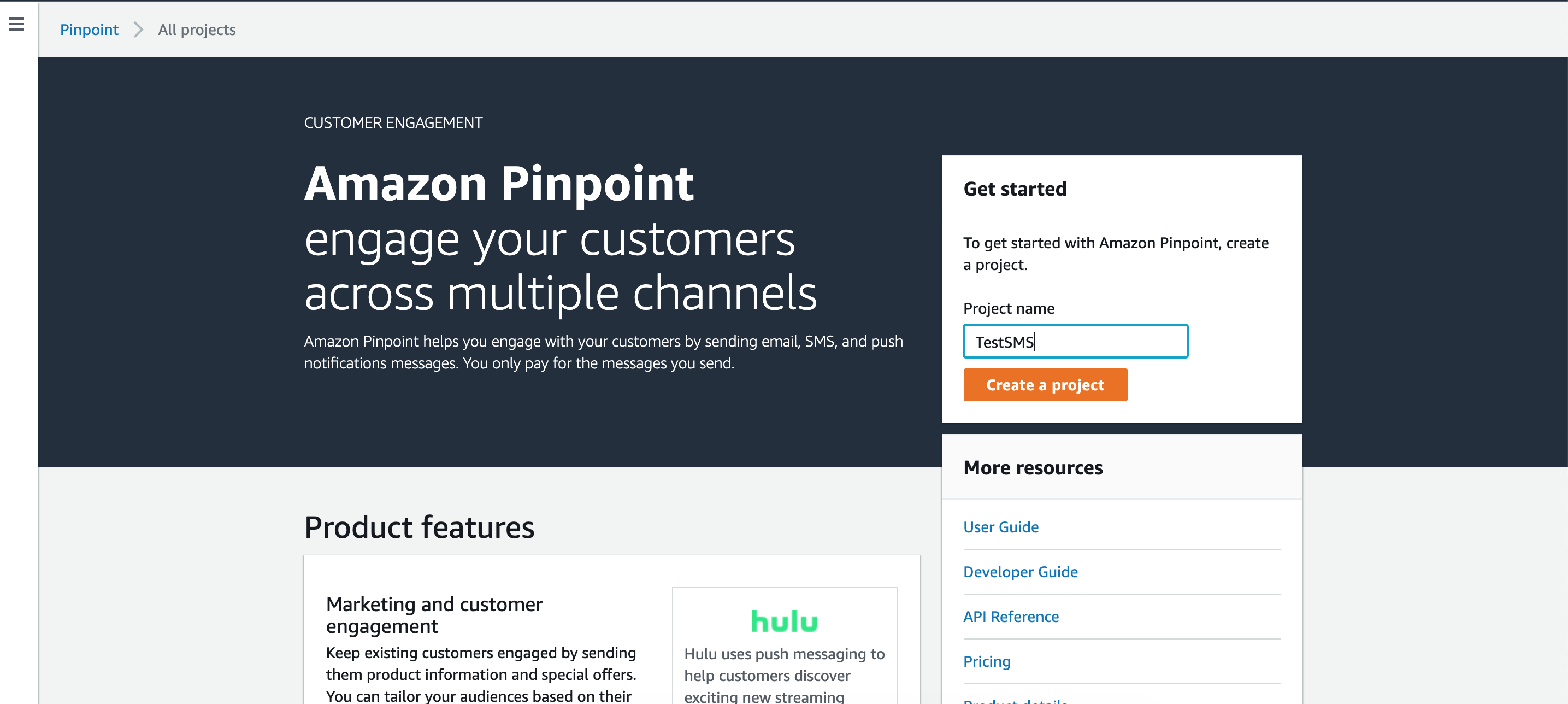
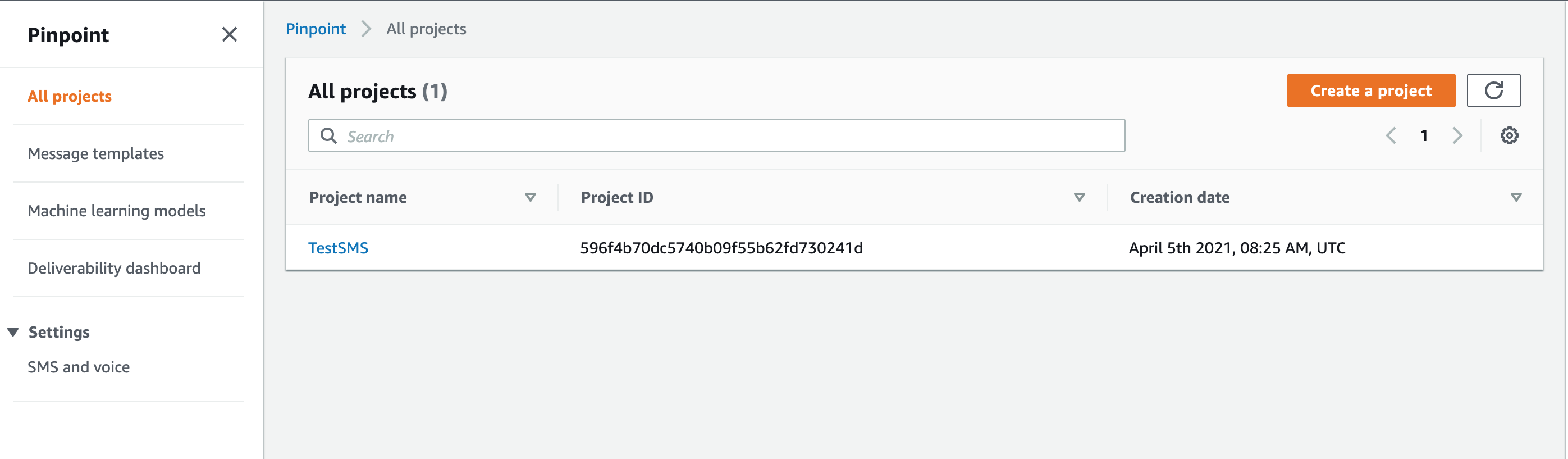
3\. For Project name, enter a name, and then choose Create.
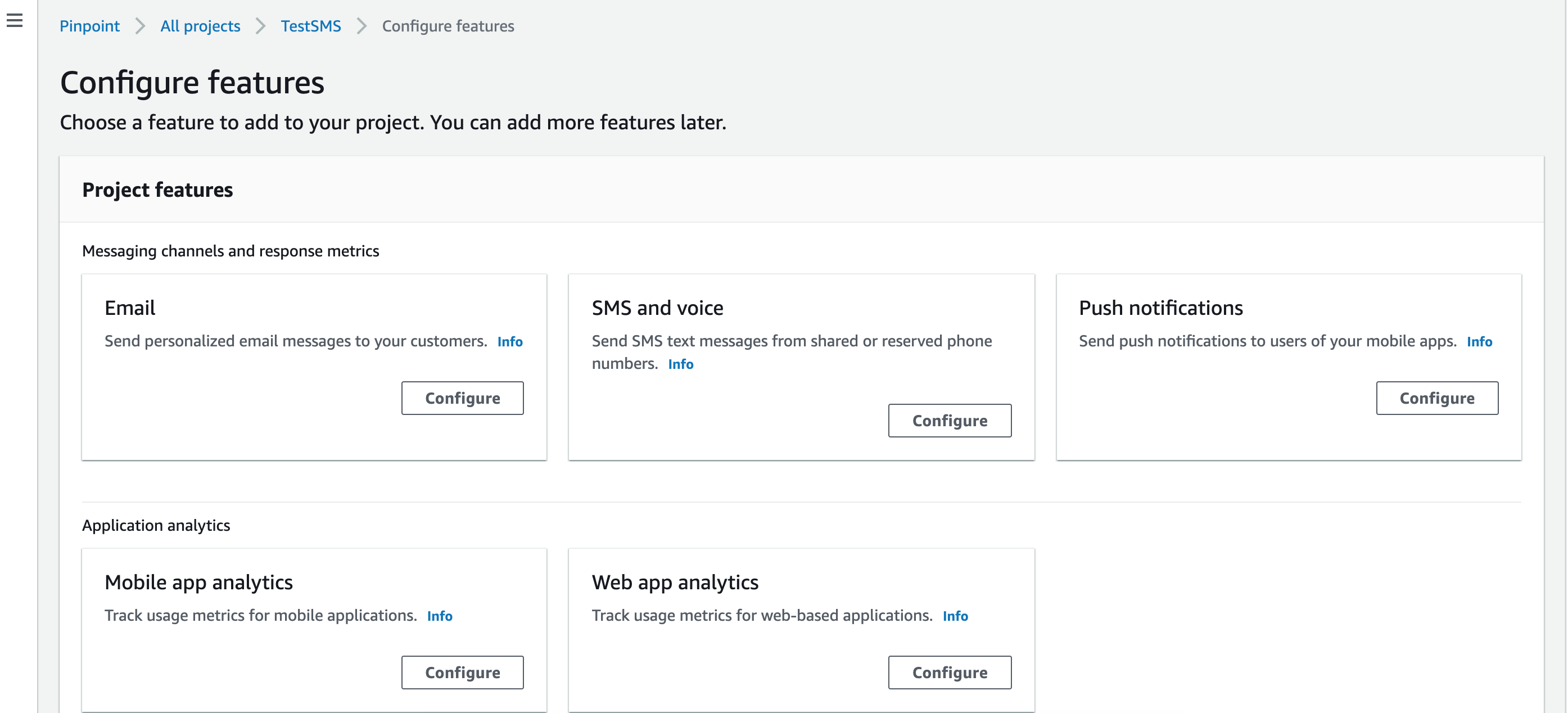
4\. Under Project features, in the SMS and voice section, choose Configure.
5\. Choose Enable the SMS channel for this project.
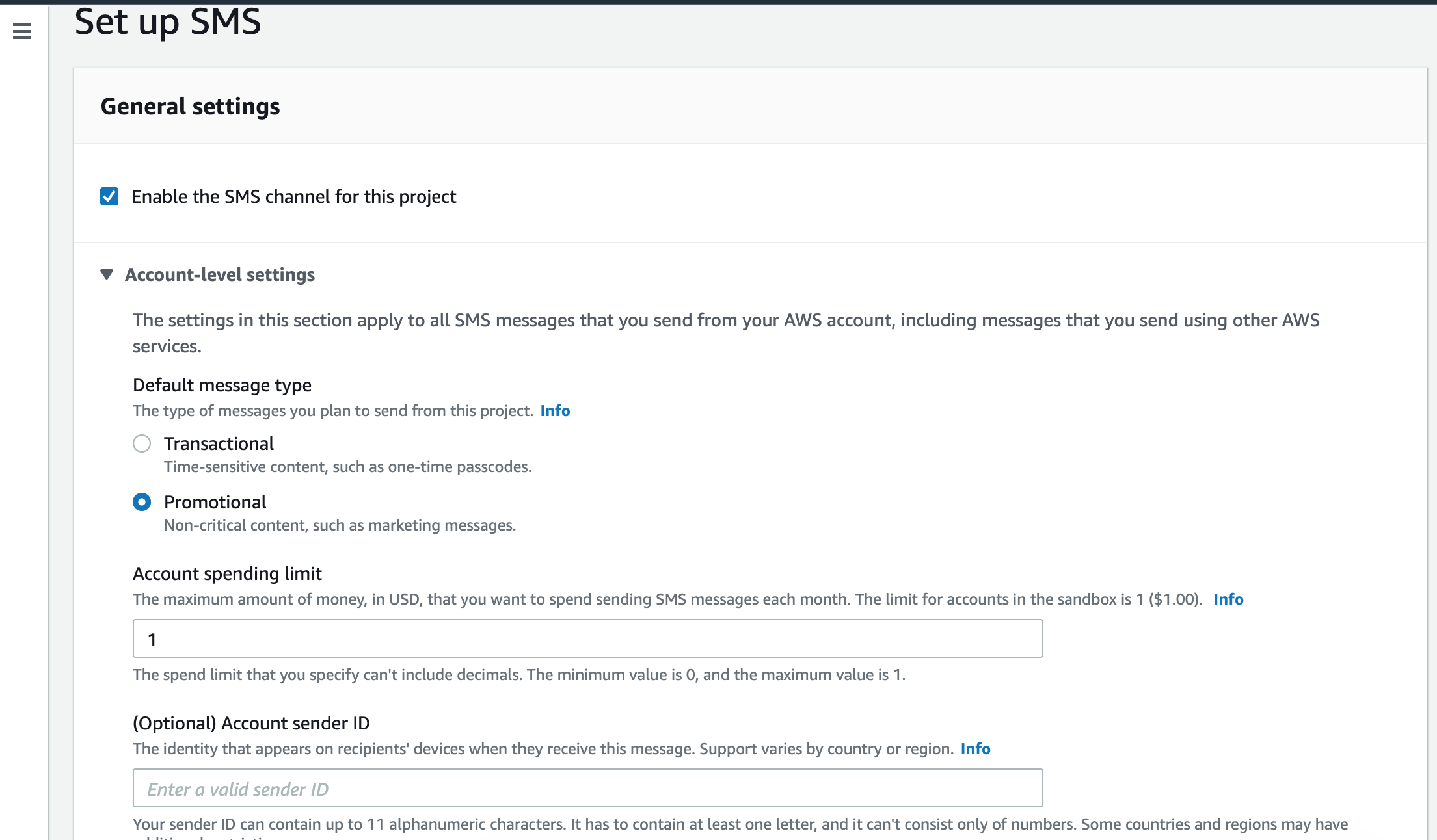
6\. Under Account-level settings, you can optionally change the following settings:
•**Default message type** – The category of messages that you plan to send. Choose Transactional for time-sensitive content, such as alerts and one-time passwords, or choose Promotional for marketing-related content.
•**Account spending limit** – The maximum amount of money, in US Dollars, that you want to spend sending SMS messages per calendar month. If your monthly spending exceeds this value, Amazon Pinpoint and other AWS services stop sending SMS messages from your account.
7\. Default sender ID – The identity that appears on recipients' devices when they receive messages. Support for sender ID capabilities varies by country or region.
8\. To request Sender ID follow the link - [https://docs.aws.amazon.com/pinpoint/latest/userguide/channels-sms-awssupport-sender-id.html](https://docs.aws.amazon.com/pinpoint/latest/userguide/channels-sms-awssupport-sender-id.html)
9\. When you finish, choose Save changes.
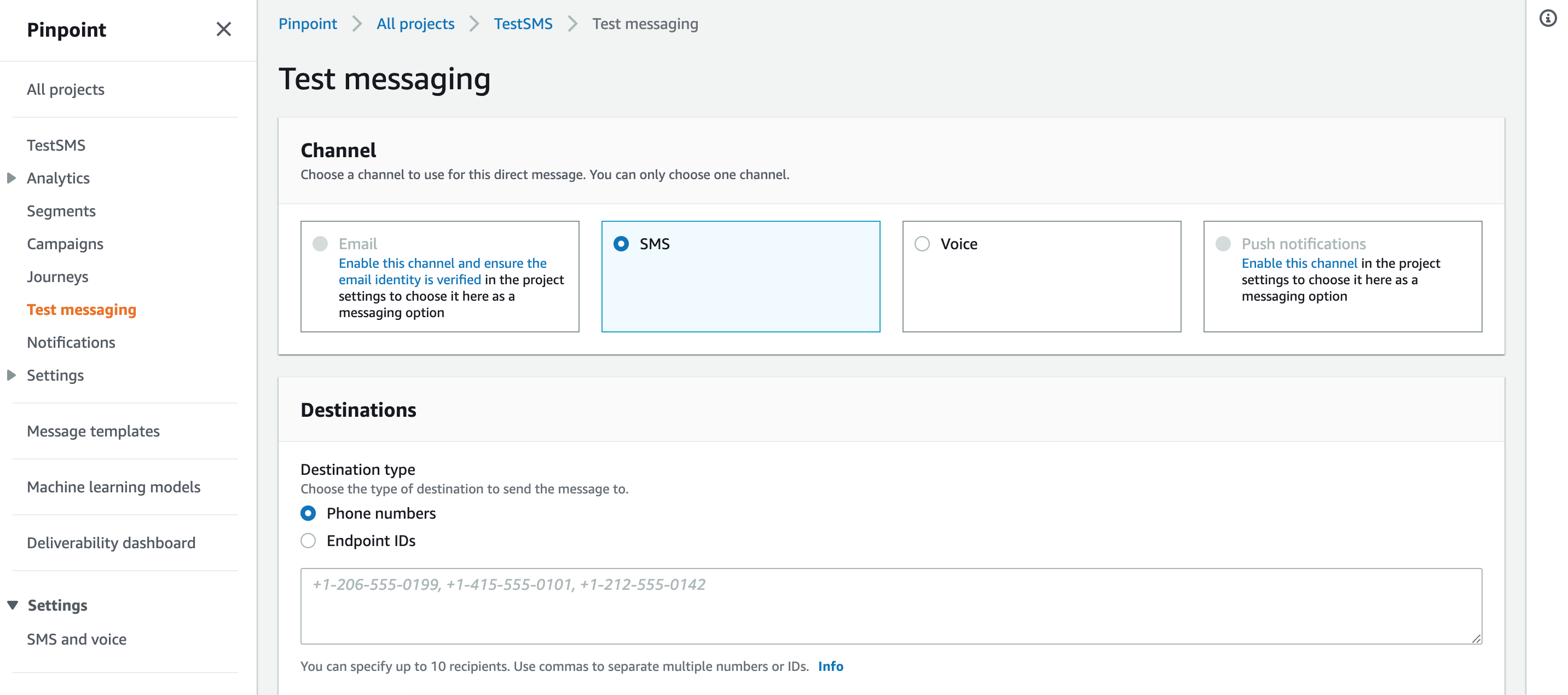
10\. To test SMS settings, choose Test messaging and send SMS to any number.
## Configuration in Salesforce
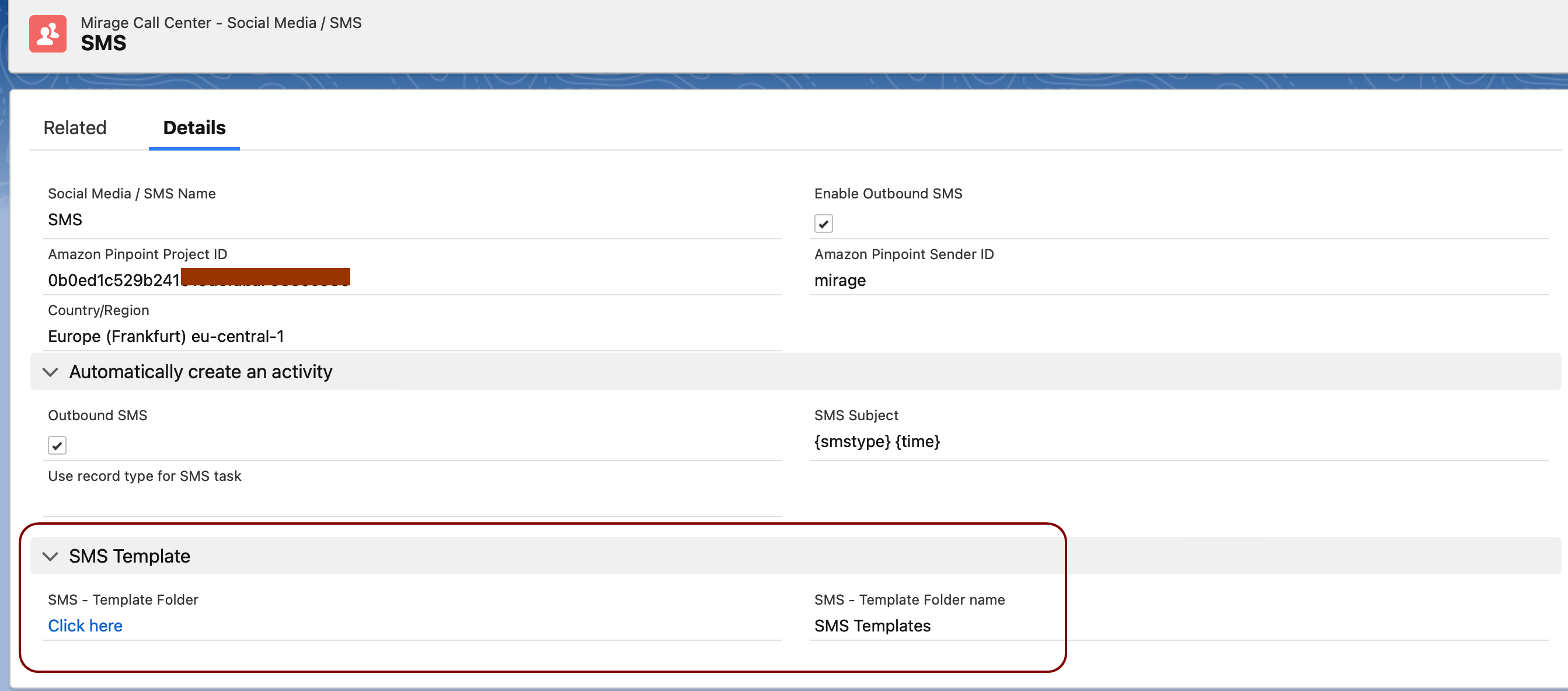
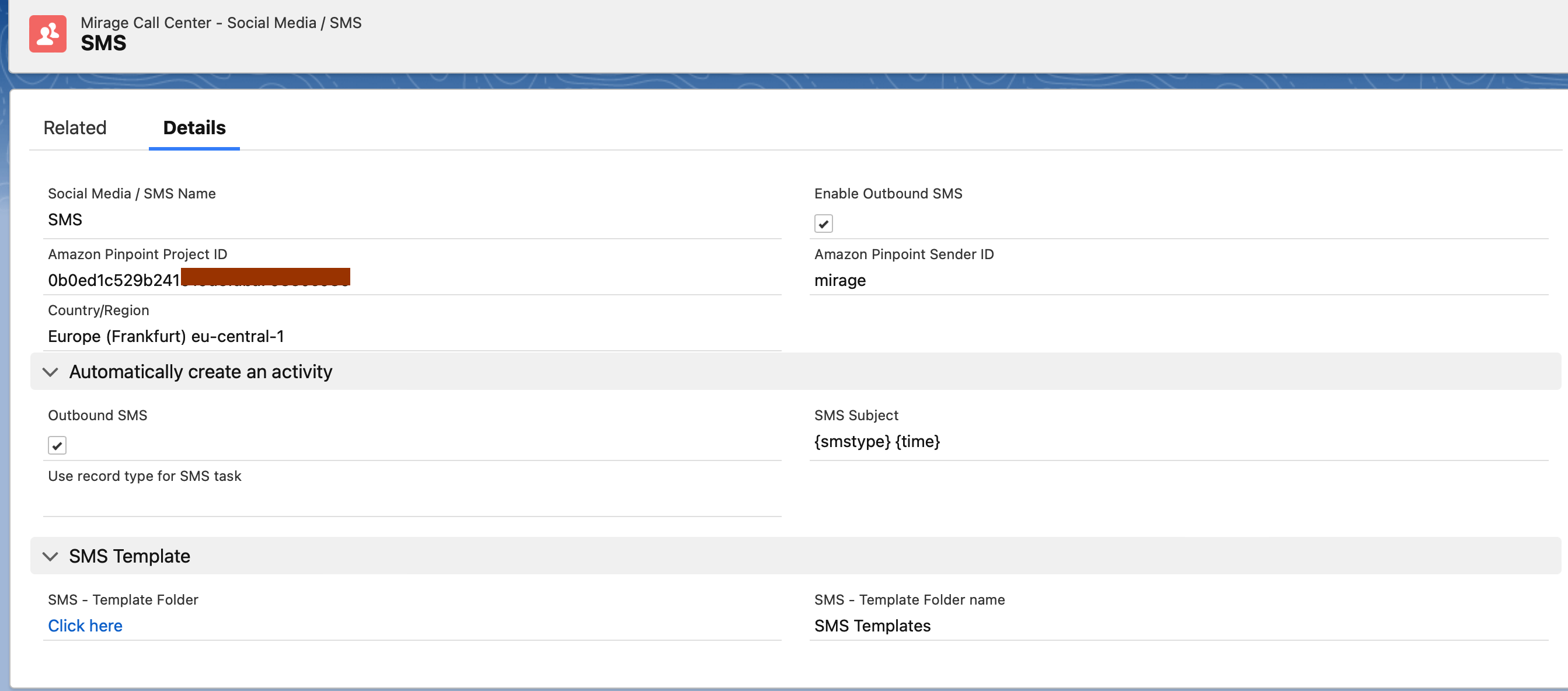
Create a new record for Social Media / SMS and add the following values.
## General Configuration
### Enable Outbound SMS
Check this option, if you want to enable the SMS functionality. It requires a setup in Amazon Pinpoint (see above)
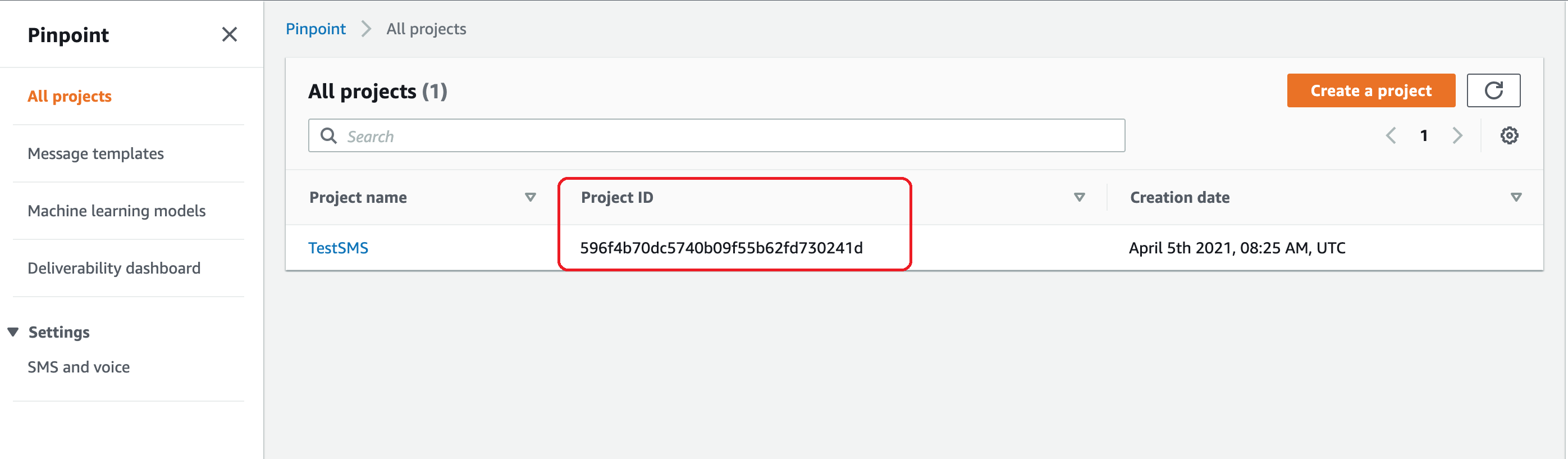
### Amazon Pinpoint Project ID
When you create a pinpoint project in AWS, an unique Project ID is automatically generated.
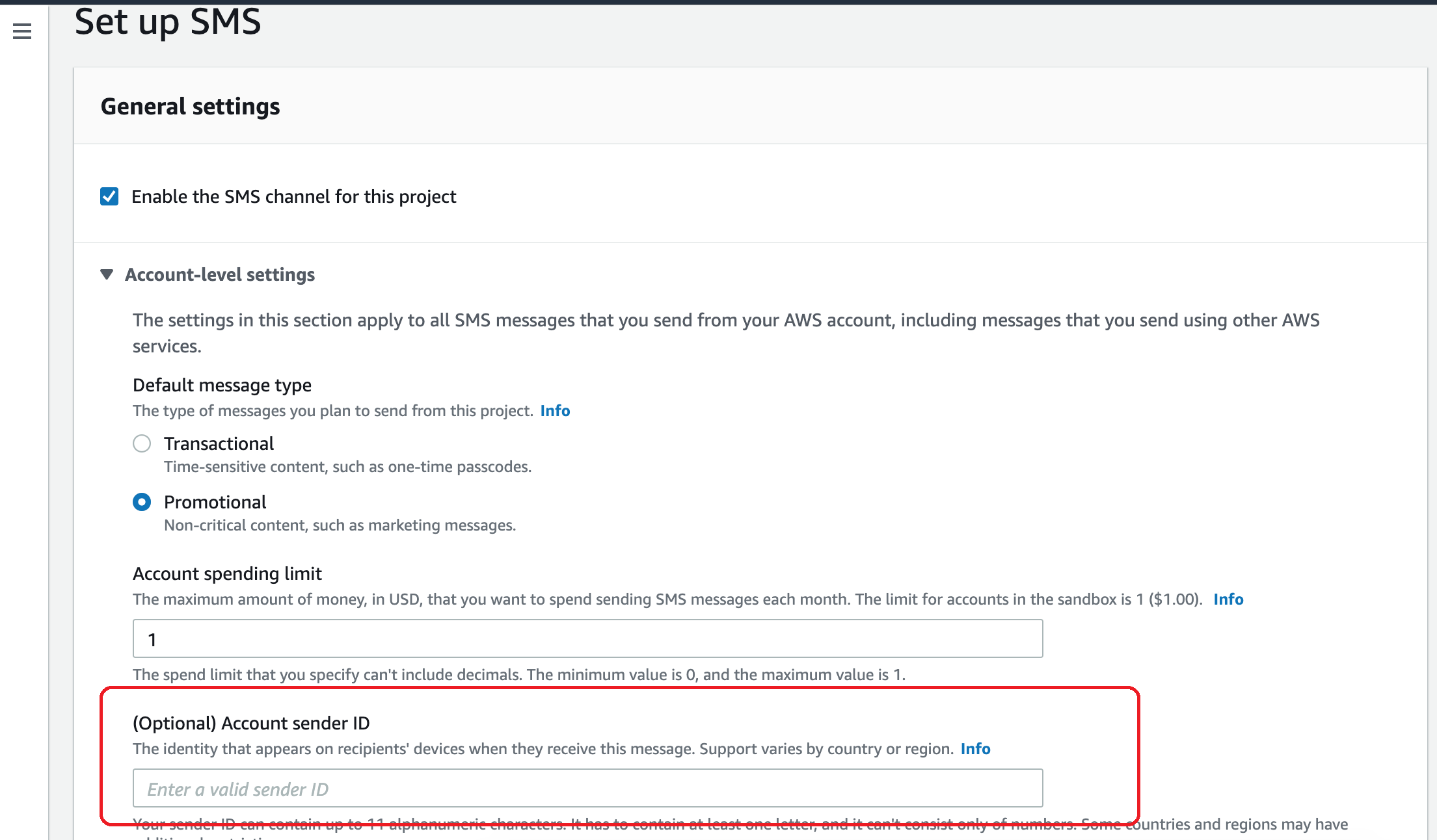
### Amazon Pinpoint Sender ID
The identity that appears on recipients' devices when they receive messages. Support for sender ID capabilities varies by country or region.
This is optional field in SMS set up.
### Country / Region
The region in the AWS where the Amazon Pinpoint is set up. For example - EU (Frankfurt), Europe (Ireland), US East.
## Automatically create an activity
### Outbound SMS
Check this option if an activity with the message of the SMS should be automatically created. The field TYPE in activity will be set to *SMS outbound*. This field can be used to create a report about SMS.
### SMS Subject
You can select the subject line for the activity which is created, once the SMS was sent.
{smstype} {time} -> Text: Outbound SMS and the time
{smstype} {date} -> Text: Outbound SMS and the date
{smstype} {time} {date} -> Text: Outbound SMS and the time + date
{smstype} -> Text: Outbound SMS
SMS - -> Text: SMS
### Use record type for SMS task
Without configuration, the default page layout of the users profile is used to save an activity of the SMS. It is possible to use an own page layout for SMS so that SMS specific fields only visible there. To achieve this, you need to create a** new page layout** and assign this page layout to a **record type**.
Add the record type of the task page layout here.
## SMS Template
Select a folder which contains the SMS templates. See SMS [SMS Template Setup](docId\:h3KyGIR58J6re_c4wt5yR) how to create the templates.