---
title: Call Center - Presence State
slug: voice-german/call-center-presence-state
docTags:
createdAt: 2024-03-19T14:56:09.762Z
---
The presence state can be used to
•Change the presence state in the phone
•Change the presence state in Omni-Channel
•Change the presence state after a phone call for x seconds to *Call Wrap-Up time*
•Log the time per user per presence state
•Display a Live Agent Status Dashboard
•Display a Wallboard
:::hint{type="info"}
Configuration settings may differ depending on the telephone system selected.
:::
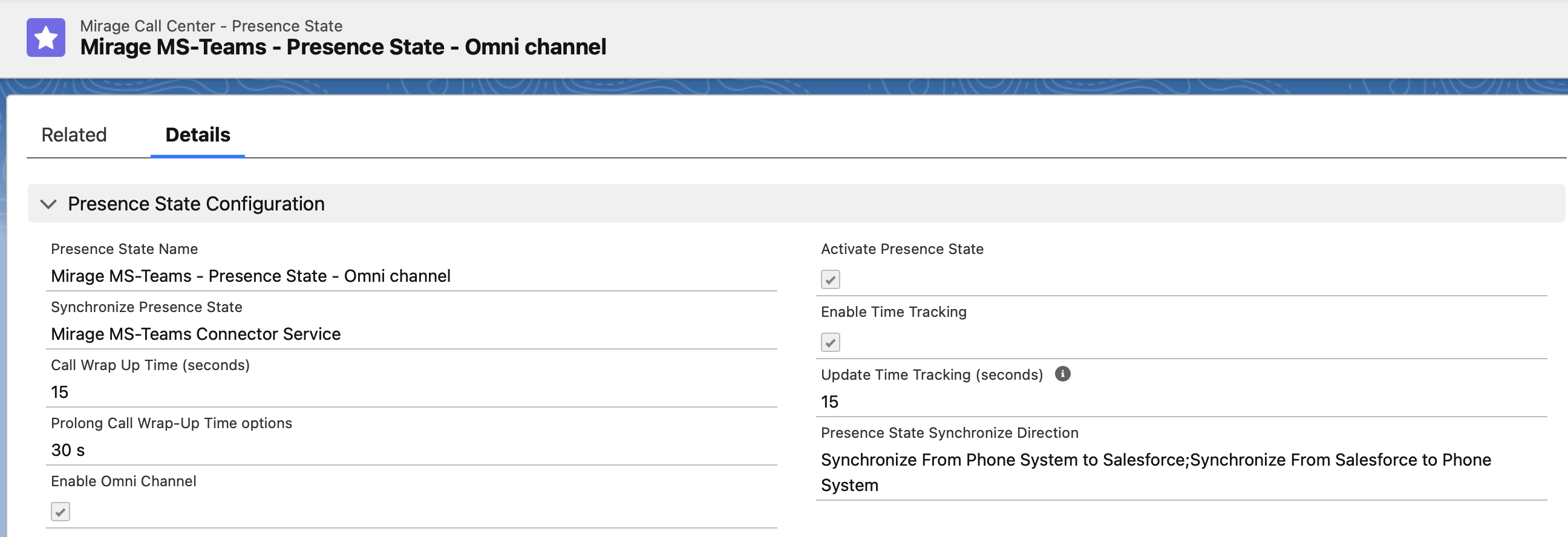
## Presence State Configuration
*Activate presence state*
Activates the presence state functionality (displays picklist in the CTI Data Connector SoftPhone)
*Send Presence State as*
There are the following configuration values
•Not sent to PBX
•Dial Command
•API - API integrations like 3CX , Mirage Teams Connector Service or CC4ALL Contact Center
Not sent to PBX
Use this option if you want to use the presence state for time tracking only.
Dial Command
In this configuration the presence state information is sent as a** dial command **to the phone systems. Some phone systems support dial commands to e.g. change to *DND* and back to *Ready for Calls*. Contact your phone vendor if you do not know the codes.
Use the command in the *Reason Code field.*
Example
Presence State Label: Ready for Calls
**Reason Code: \*60**
Presence Status: 1 (Online)
Presence State Label: Do Not Disturb
**Reason Code: \*61**
Presence Status: 4 (DND)
Note - \*60 is an example and is different per PBX. You have to contact the PBX vendor to get the correct dial commands.
*Enable time tracking*
Activates time tracking with historical values. It is required if you want to use the wallboard with historical values
Note - this generates a huge amount of data. If you enable the feature, also enable the scheduler to delete the data.
*Update Time tracking (seconds)*
If the Live Agent Dashboard or Wallboard is used, set to 15 seconds.
*Call Wrap-Up time in seconds*
0 = feature disabled
1 - 999 - after a call the presence state is set to *Do not Disturb *for the specified number of seconds
See: [Call Wrap-Up Time](docId\:kVbr-io0q1Y7A9v64PcdZ)
P*rolong Call Wrap-Up Time options*
If selected, the user can prolong the call wrap-up time after the call. The selected value is the default value
See: [Call Wrap-Up Time](docId\:kVbr-io0q1Y7A9v64PcdZ)
*Enable Omni-Channel*
Check this option if you want to synchronise the presence state with Omni-Channel
Active Call - change presence state
If enabled, the presence state changes **automatically** during a call from
•Online / Available to
•On a Call (if configured) to
•Call Wrap-Up time (if configured) back to
•Online / Available
:::hint{type="info"}
If your phone system does not support*Call Wrap-Up time*, send the code for DND (Do not Disturb). *On a Call* is most often handled by the phone system and reason code can be empty.
:::
*Presence State Synchronize Direction*
If the phone system support presence state synchronization, you can enable the synchronization direction:
•Synchronize From Salesforce to Phone System
•Synchronize From Phone System to Salesforce (supported by 3CX, Mirage Teams Connector Service and CC4Teams)
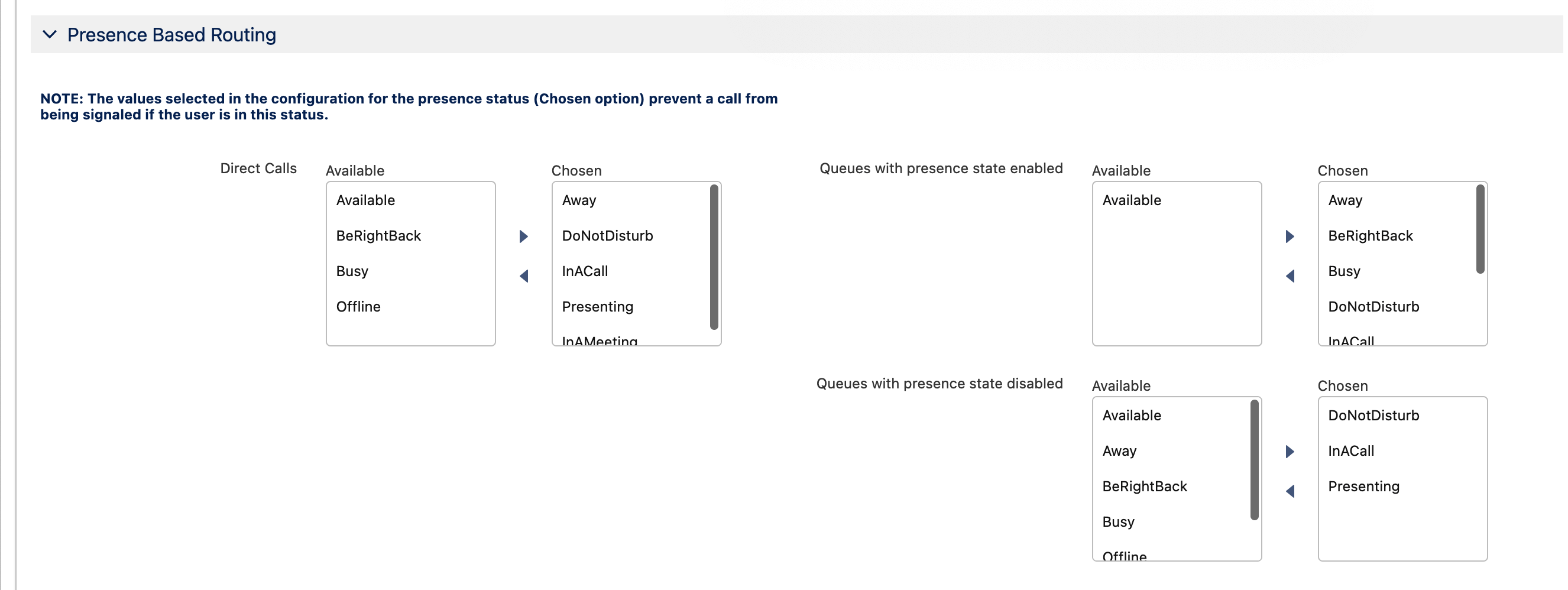
## Presence Based Routing
This feature is available only for the Mirage Teams Connector Service and goes beyond the configuration options, available for MS Teams. MS Teams only has a configuration: *Busy on Busy*, which is ignored by CTI Data Connector for Salesforce®.
It allows configuring the presence states, which** prevent** inbound calls from being signaled.
The configuration is available for:
•Direct Extension Calls
•Queues with presence state enabled
•Queues with presence state disabled (even if the presence state check is disabled, you may want to ensure that no call comes in when you are busy)

In the example below, direct calls would NOT be signaled if the presence state is *Away, DND, In a call, Presenting, In a meeting*
## Presence State Label
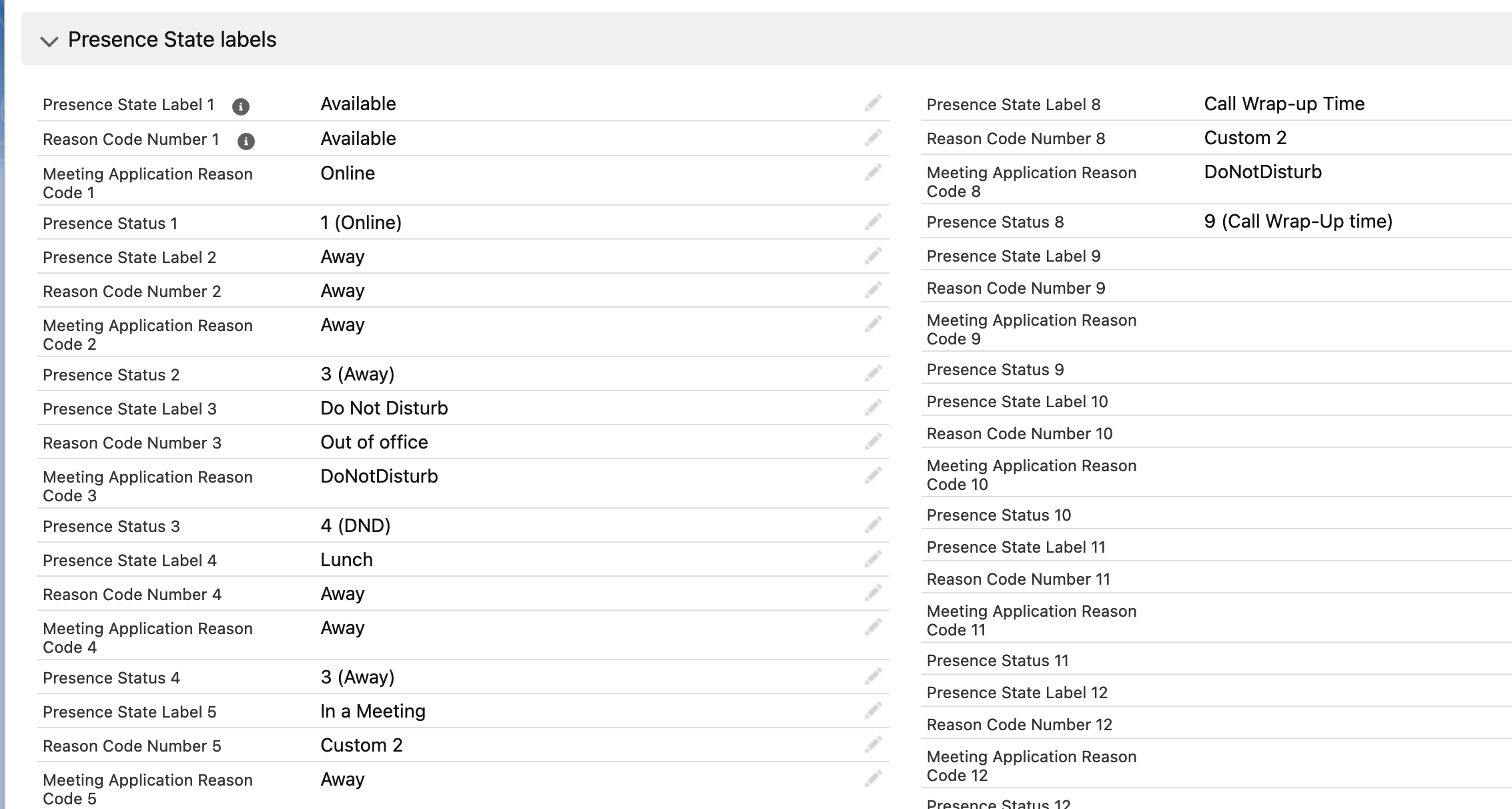
*Presence State Label*
Text which the user will see as the presence state information
Reason Code number
This number can be used to synchronize the presence state with phone systems or as a value in own reports.
*Presence Status*
Value 1 - 9
The presence status code can be used for reports and is also shown in the picklist of the presence state in brackets,
e.g. *Ready for Calls (Online*). The values are pre-defined and cannot be changed.
•1 = Online
•2 = Offline
•3 = Away
•4 = DND
•5 = Busy
•6 = On a call
•7 = Logout
•8 = (Offline / Outbound possible)
•9 = Call Wrap-Up time
Certain presence states can not be configured (e.g. ringing)
## 2. Presence state showing in CTI Data Connector SoftPhone
If activated, a new picklist appears
::Image[]{src="https://helpserver.biz/onlinehelp/cdc/sf/5.0/help2000/images/presence-state.png" size="44" width="550" height="750" position="center" showCaption="false"}
## Preconfigured Presence State setups
If activated, you can change the presence state for Skype for Business in the CTI Data Connector SoftPhone. Changing the presence state in Skype for Business however does have no effect on the CTI Data Connector SoftPhone.
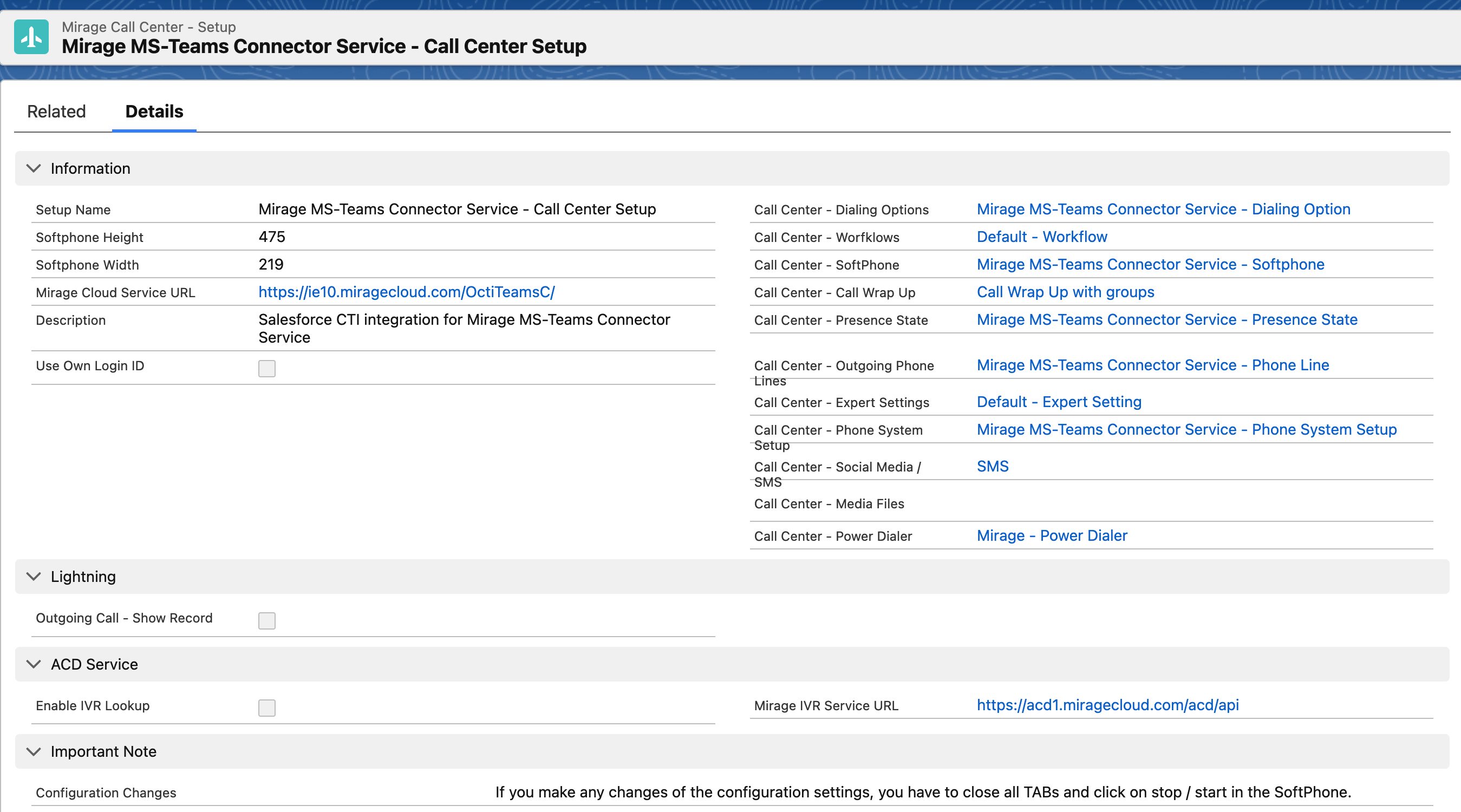
Select in Main Setup - Call Center Configuration , *Call Center Presence State* a preconfigured presence state setup
•3CX
•Amazon Connect
•MS Teams with CC4ALL
•Skype für Business
**Beispiel: MS Teams vorkonfigurierte Konfiguration**
**3. Live Agent Dashboard and Wallboard**
Configuration for the Live Agent Dashboard and Wallboard. If you need different configurations depending on the user, you need to create a copy of the Call Center Configuration and a copy of the Presence State configuration with different settings.

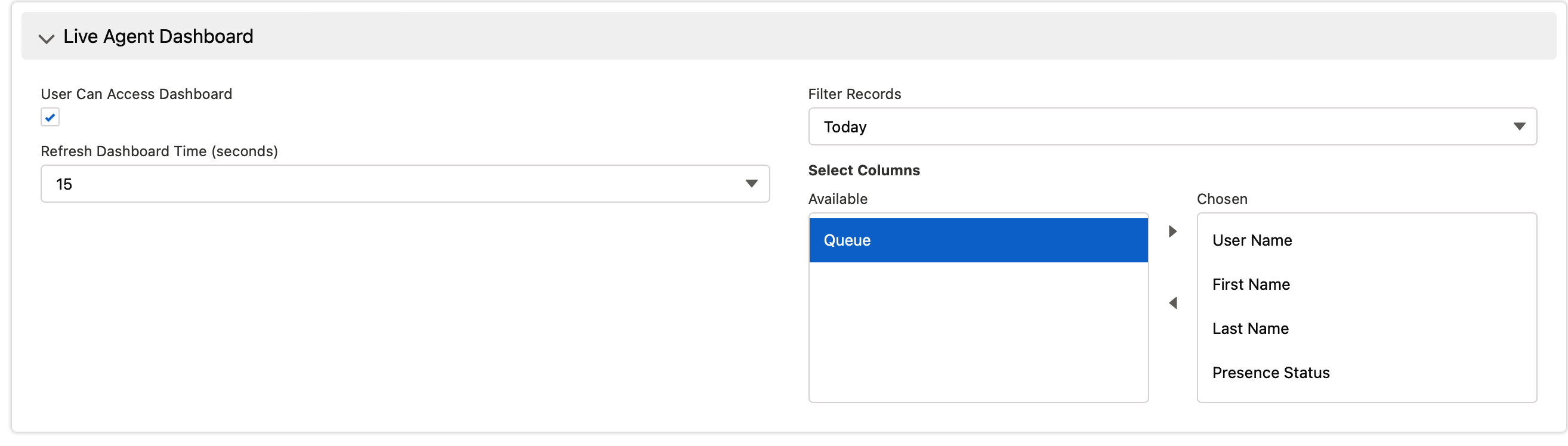
*User Can Access Dashboard*
Enables the access for the Live Agent Dashboard
*Use can Access Wallboard*
Enables the access for the [Wallboard](https://helpserver.biz/onlinehelp/cdc/sf/5.0/help2000/wallboard.html)
*Refresh Dashboard Time (seconds)*
Defines how often the Dashboard refreshes. Default is 15s
*Filter Records*
Set a **default** value, which records should display in the Live Agent Status Dashboard. The default value is that only users who logged in today will appear. In the Dashboard, other filter values like All can be selected.
*Select Columns*
Select the columns of the Live Agent Status Dashboard. Values that are not supported by your phone systems or values, which are not needed, can be removed.
*Skills*
Skills can be displayed in the Live Agent Dashboard to quickly find users with specific skills such as languages or product knowledge.
There are two options to do this:
•If Omni-Channel is used, skills defined in the Omni-Channel can be displayed
•Alternatively, you can define your own skills in the Salesforce user record. See [Skills](docId\:h0RoZOx5Cz0MqDkokqy9r)
*Limit access to Call Centers*
Determines from which call center setup the data should be displayed in the Live Agent Status Dashboard and Wallboard. The data will then be limited to individual teams or countries.
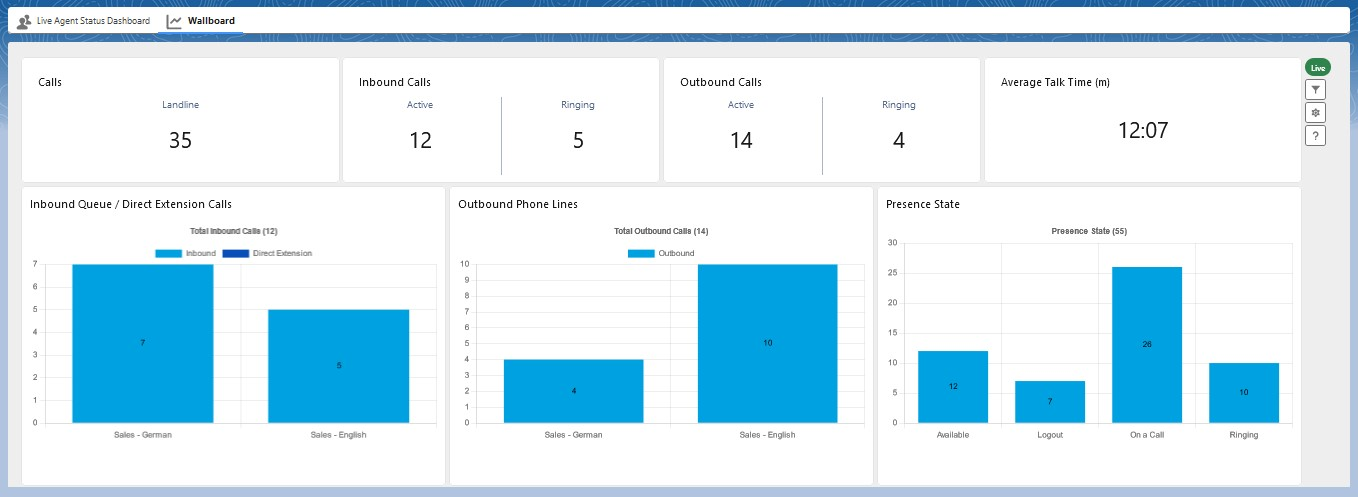
Display KPIs for Live Calls
Customize the Wallboard** Live** view by selecting the desired KPIs to display.
Available KPIs:
•Calls (MS Teams)
•Calls (Landline)
•Inbound Calls (Active)
•Inbound Calls (Ringing)
•Outbound Calls (Active)
•Outbound Calls (Ringing)
•Average Talk Time
•Presence State Chart
•Inbound Queue / Direct Extension Calls Chart
•Outbound Phone Lines Chart
A sample view of the Wallboard and the KPIs is shown below.
*Display KPIs for Historic Calls*
Customize the Wallboard **Historical** view by selecting the desired KPIs to display.
Available KPIs:
•Calls (MS Teams)
•Calls (Landline)
•Inbound Calls
•Outbound Calls
•Average Talk Time
•Unanswered Calls
•Missed Calls
•Missed - but Answered
•Inbound Queue / Direct Extension Calls Chart
•Outbound Phone Lines Chart
Details about additional configuration in [Live Agent status Dashboard](docId:24Y8x81A9BkHj9QmYqEJc)