---
title: Call Center - Power Dialer
slug: voice-german/call-center-power-dialer
docTags:
createdAt: 2024-03-19T15:33:13.020Z
---
This configuration enables the Power Dialer feature.
In the Call Center , add a new configuration for: **Mirage Call Center - Power Dialer**
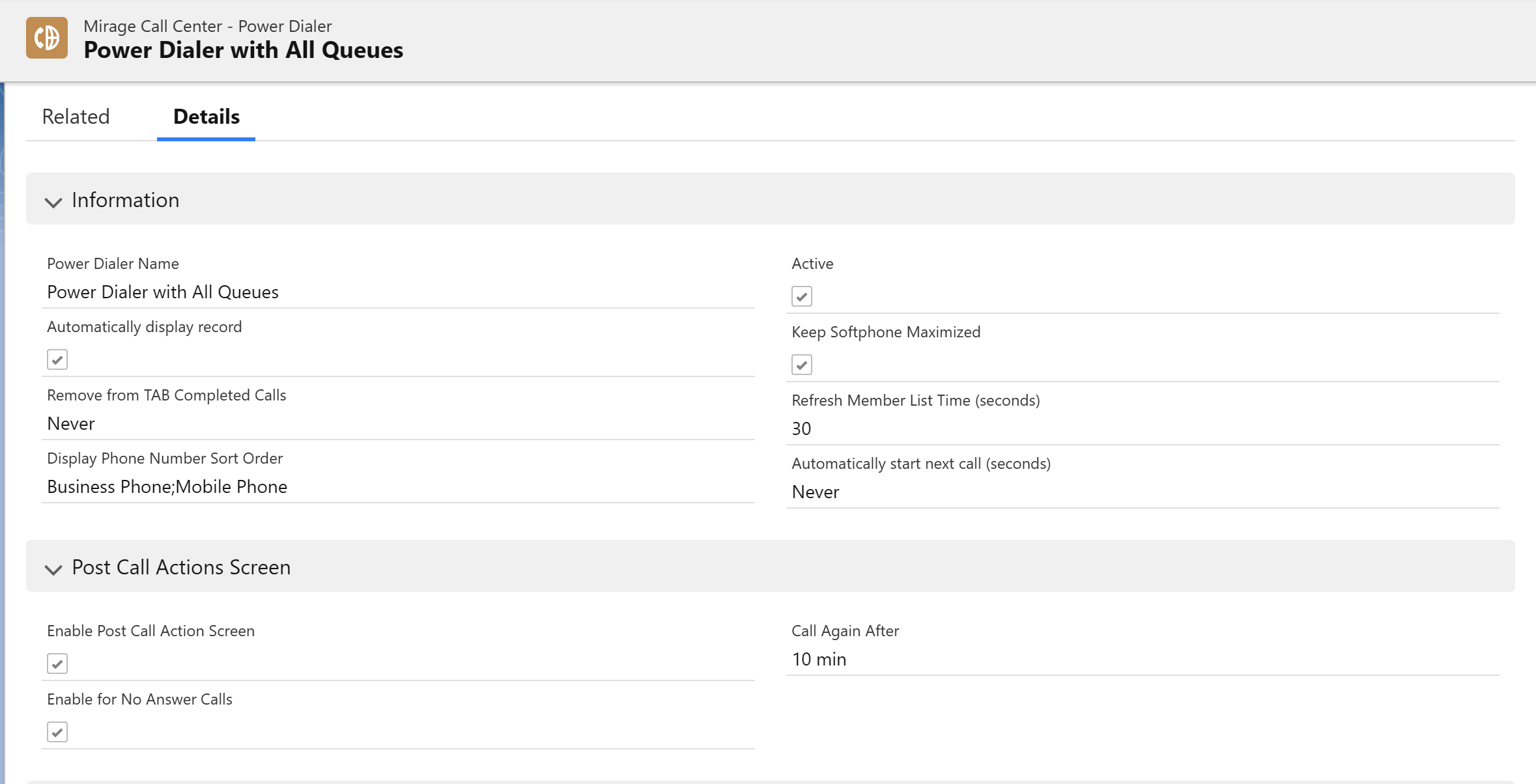
Click on the button **Edit**
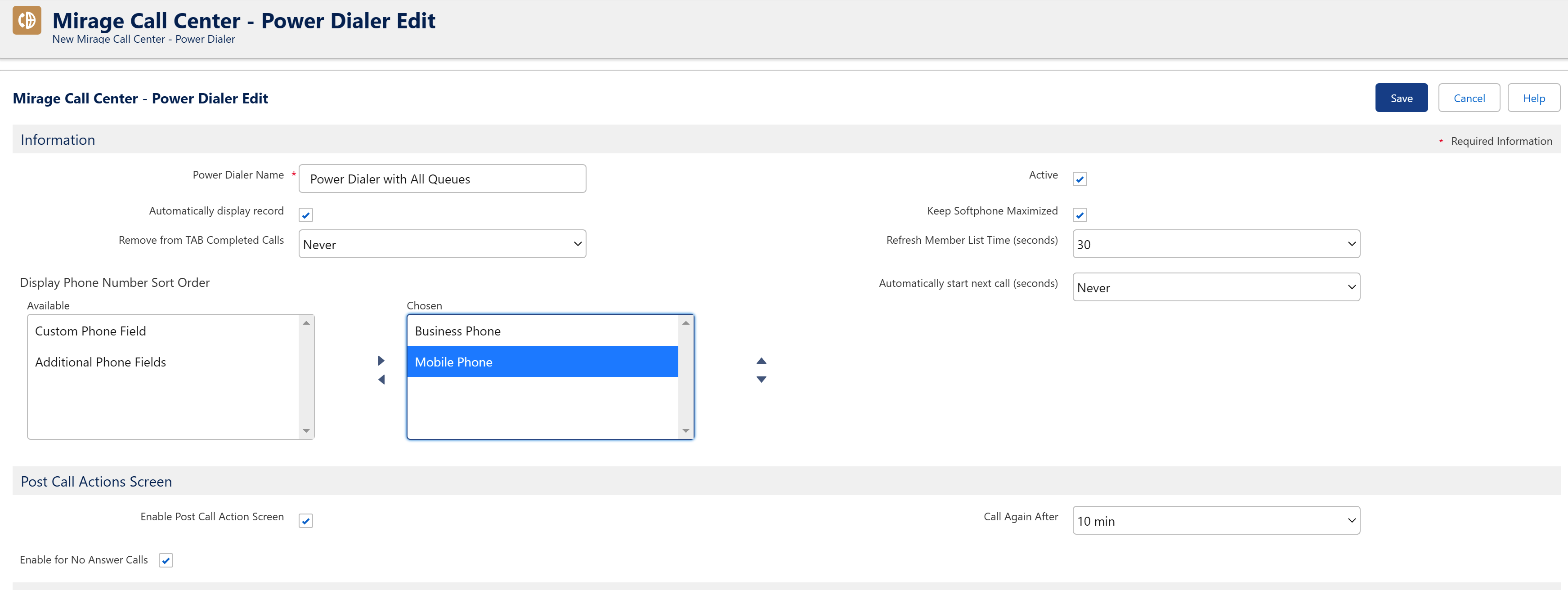
**Power Dialer Name**
Name to identify the configuration.
**Automatically display record**
If you click on a phone number in the Power Dialer, the record (Lead / Account / Contact) is automatically displayed
**Keep SoftPhone maximised**
If checked, the SoftPhone will not minimize after a call is done. This setting is only relevant for calls done with Power Dialer.
**Remove from TAB completed calls**
Configuration if a call member should be removed after x days from the completed TAB. This is only for visibility in the completed TAB. The reporting is still including all completed campaign calls.
**Refresh Member List Time (seconds)**
Time in seconds in which a call list is updated in the Power Dialer.
**Display Phone Number sort order**
The business phone number is, by default, shown as the first number to dial. Then the mobile number. You can define your sort order depending on how phone numbers are used.
::Image[]{src="https://helpserver.biz/onlinehelp/cdc/sf/5.0/help2000/images/pd-phonenumbersort.png" size="48" width="566" height="932" position="center" darkWidth="566" darkHeight="932" showCaption="false"}
**Automatically start next call (seconds)**
By default, the automatic dialing feature is disabled (set to Never). To enable automatic dialing, select the number of seconds after the Power Dialer starts the next call.
## Post Call Action Screens
**Enable Post Call Action Screen**
If checked, the *Next Action* screen is displayed at the end of a call. This setting is recommended.
**Call again after**
**Default **value to reschedule a call (Scheduled Call List) after clicking on the :FontAwesome[]{icon="fa-solid fa-clock"} icon.
The values available in the picklist can be configured in the object *Mirage Call Center - Power Dialer*, picklist field: **Call Again After**
**Enable for No Answer Calls**
The Next Action screen can also be displayed for unsuccessful (not reached), outgoing calls.
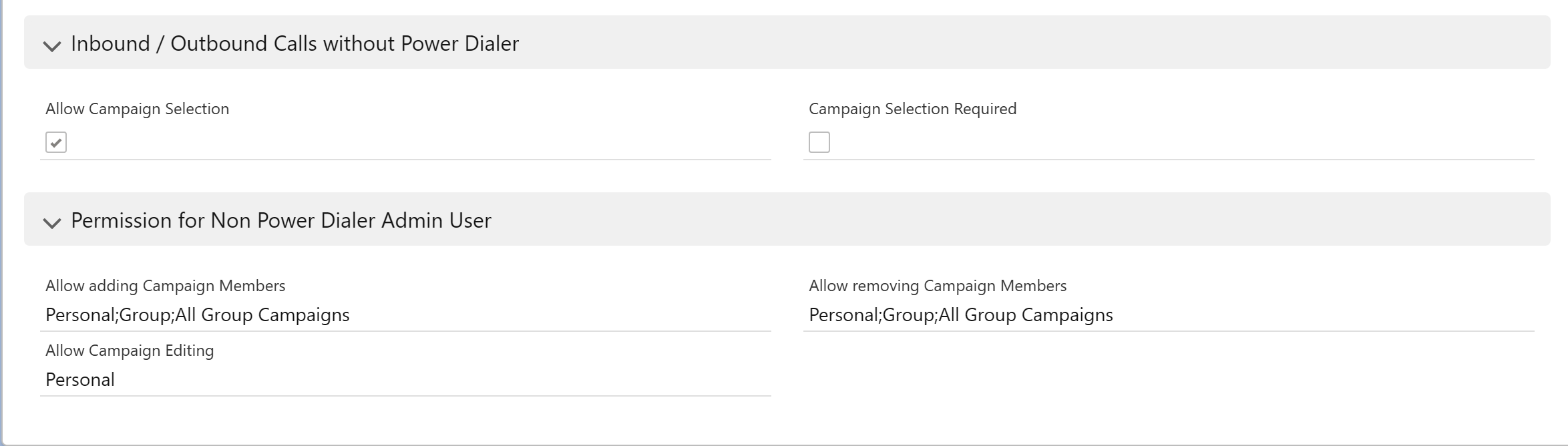
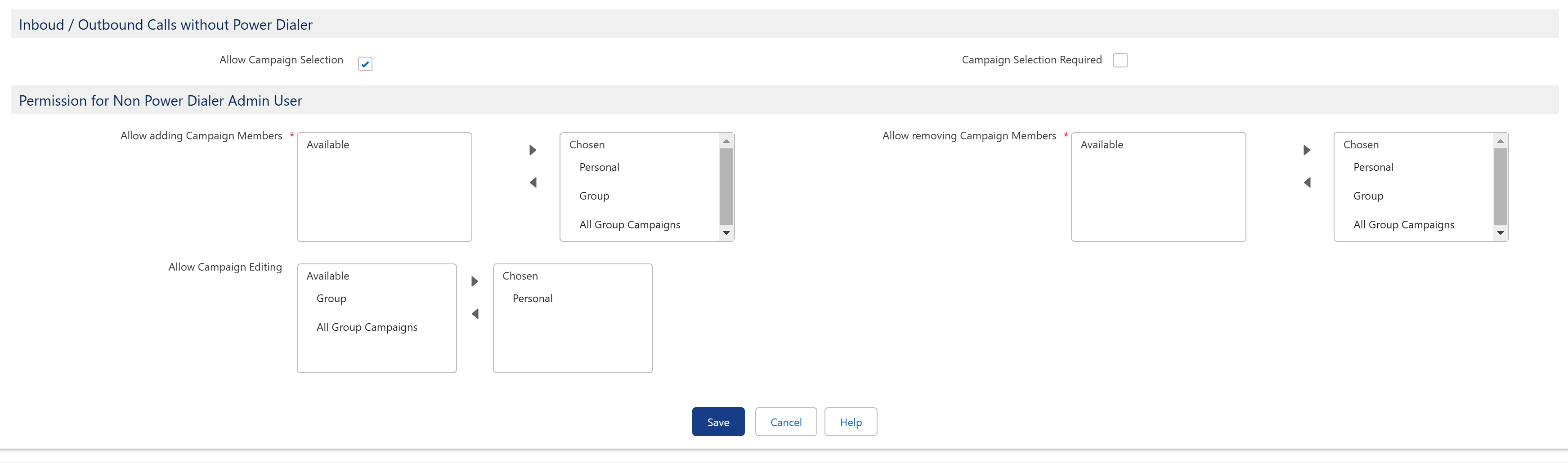
## Inbound / Outbound calls without Power Dialer
**Allow Campaign Selection**
This option enables a smart campaign detection logic when calling from a contact, account or lead record
**Campaign Selection Required**
In case a record if assigned to multiple call campaigns, the user must select a call campaign,
## Permission for Non Power Dialer admin users
**Allow adding Campaign Members**
Defines if user, who is not a Power Dialer Administrator, can select a record (Lead / Account / Contact) and add this record as a member to a campaign.
Personal
A user can add a record only his personal call campaigns
Queue Member
A user can add a record to all campaigns where the user is assigned in the queue of the campaign
All Queues (all group call campaigns)
A user can add a record to all **group** call campaigns
**Allow removing Campaign Members**
Defines if user, who is not a Power Dialer Administrator can remove a record (Lead / Account / Contact) from a campaign
Personal
A user can remove a record only from his personal call campaigns
Queue Member
A user can remove a record from all campaigns where the user is assigned in the queue of the campaign
All Queues (all group campaigns)
A user can remove a record from all **group** call campaigns
**Allow Campaign Editing**
Defines if user, who is not a Power Dialer Administrator, can edit campaign settings.
Personal
A user can edit only his personal call campaigns
Queue Member
A user can edit all campaigns where the user is assigned in the queue of the campaign.
All Queues (all group campaigns)
A user can edit all all **group** call campaigns
:::hint{type="info"}
•At least one user is required as Power Dialer Administrator.
•**Continue with the Page Layout change.**
:::